Welcome to PieMaster
PieMaster is the most powerful custom menu system for Blender. It lets you build fully custom pie menus, simple menus, and layout menus — directly inside Blender, without writing any Python.
Instead of digging through panels and searching for shortcuts, your most-used tools are exactly where your cursor is, one flick away.
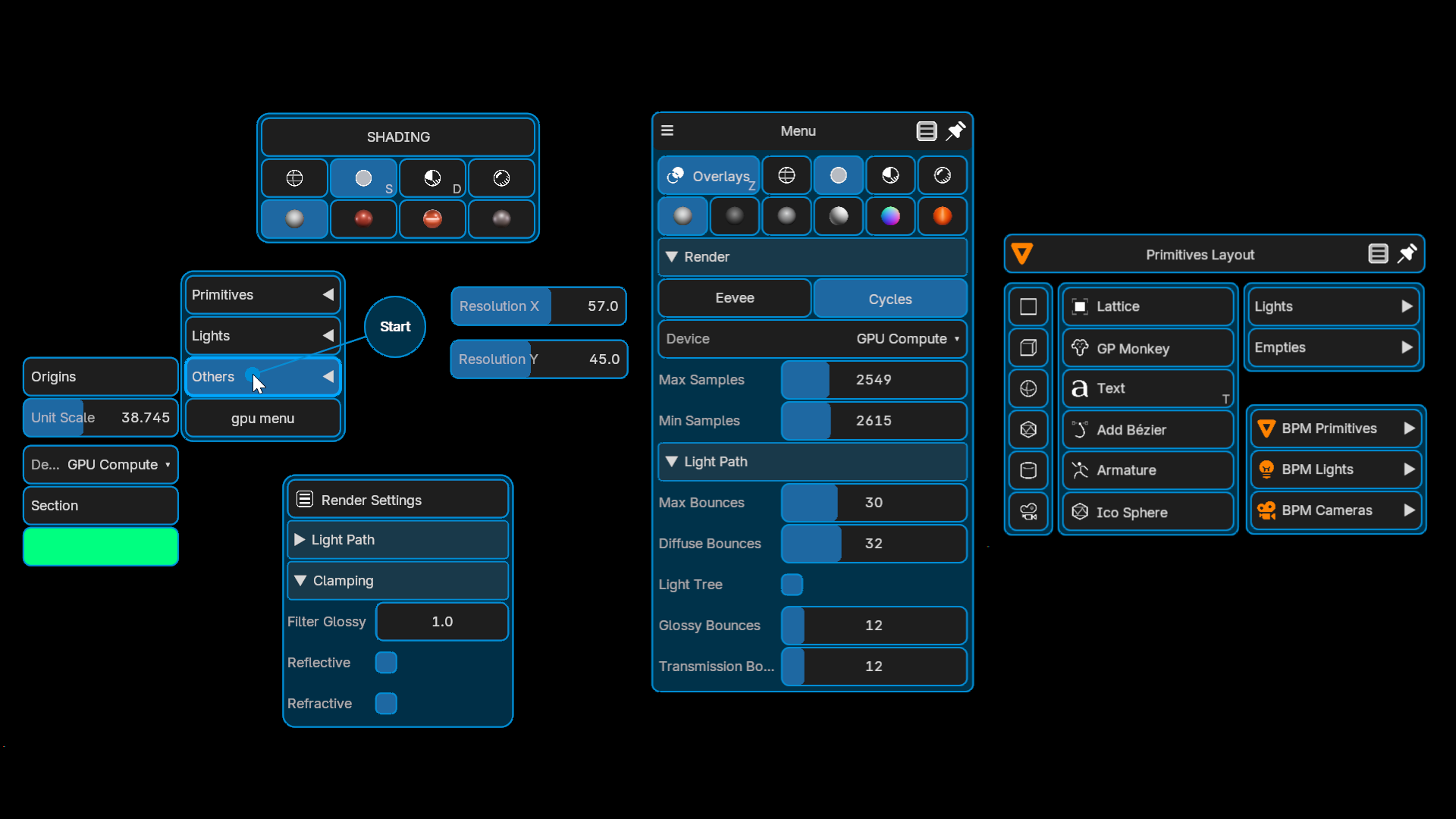
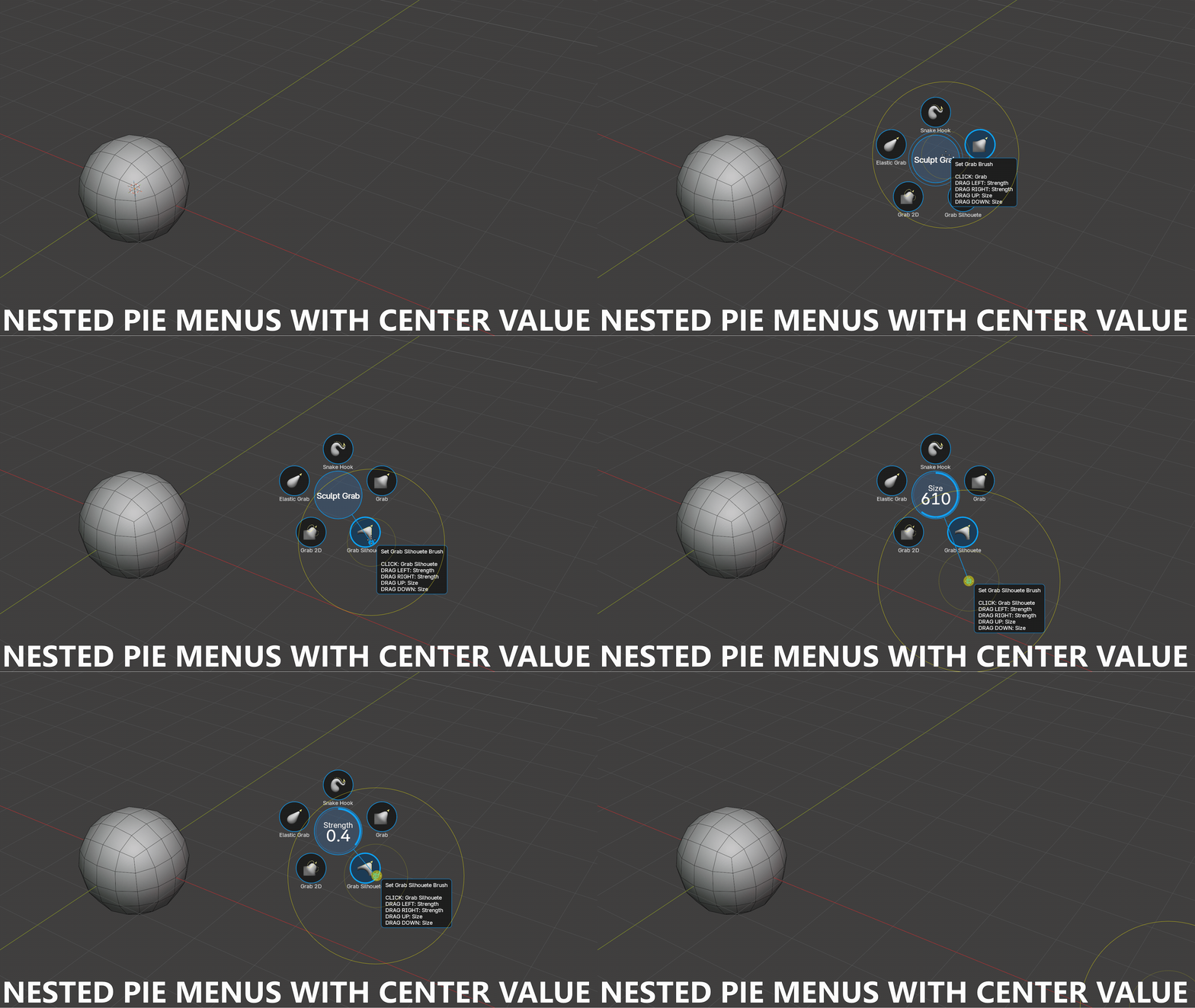
Not like Blender's built-in pie menus
PieMaster draws everything itself using Blender's GPU module. This means no 8-button limit, true nested pies, sliders and drawers inside menus, per-menu custom design, and much more.
Requirements
Blender 5.1 or newer is required.
Installation
- Download the
.zipfile from your purchase page. - In Blender, go to Edit > Preferences > Add-ons.
- Click Install from Disk and select the
.zipfile. - Enable the addon by ticking its checkbox.
- Click on PieMaster in the list to expand it — the full editor opens right inside Preferences.
How to Update
Save first — Remove deletes your local data
Remove wipes the add-on folder, including user_pies.json if you haven't set an external save path. Before updating:
- Save your presets — export them (Presets & Import/Export) or make sure they already save to a global path.
- Set an auto-save path (Options tab → auto-save filepath field) so your presets/settings save to a file outside the add-on folder and survive a Remove. If you skip this, your menus and keymaps are lost when the old version is removed.
Always follow this order
Skipping the restart can cause conflicts between old and new code.
- Save your presets and confirm your save path is set (see above).
- Remove the old version — go to Edit > Preferences > Add-ons, find PieMaster, click Remove.
- Restart Blender completely.
- Install the new version (same steps as above).
- If you used a global save path, your presets/settings reload automatically. Otherwise, import the presets you exported in step 1.
If menus stop working after an update, repeat these steps.
What Can PieMaster Do?
Pie Menus — Circular popups with buttons in all directions.
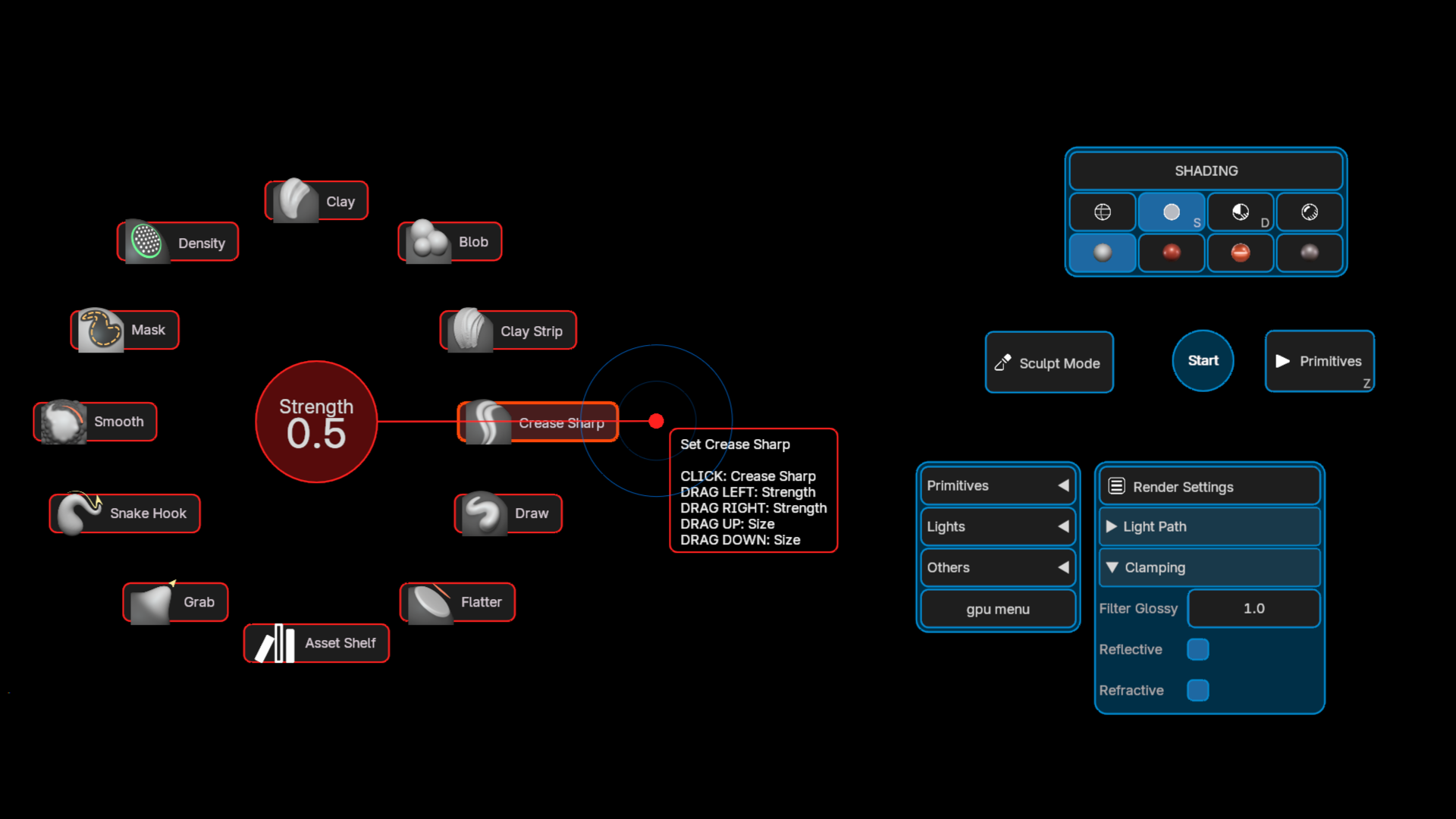
Simple Menus — Flat grids of buttons, like a right-click menu.
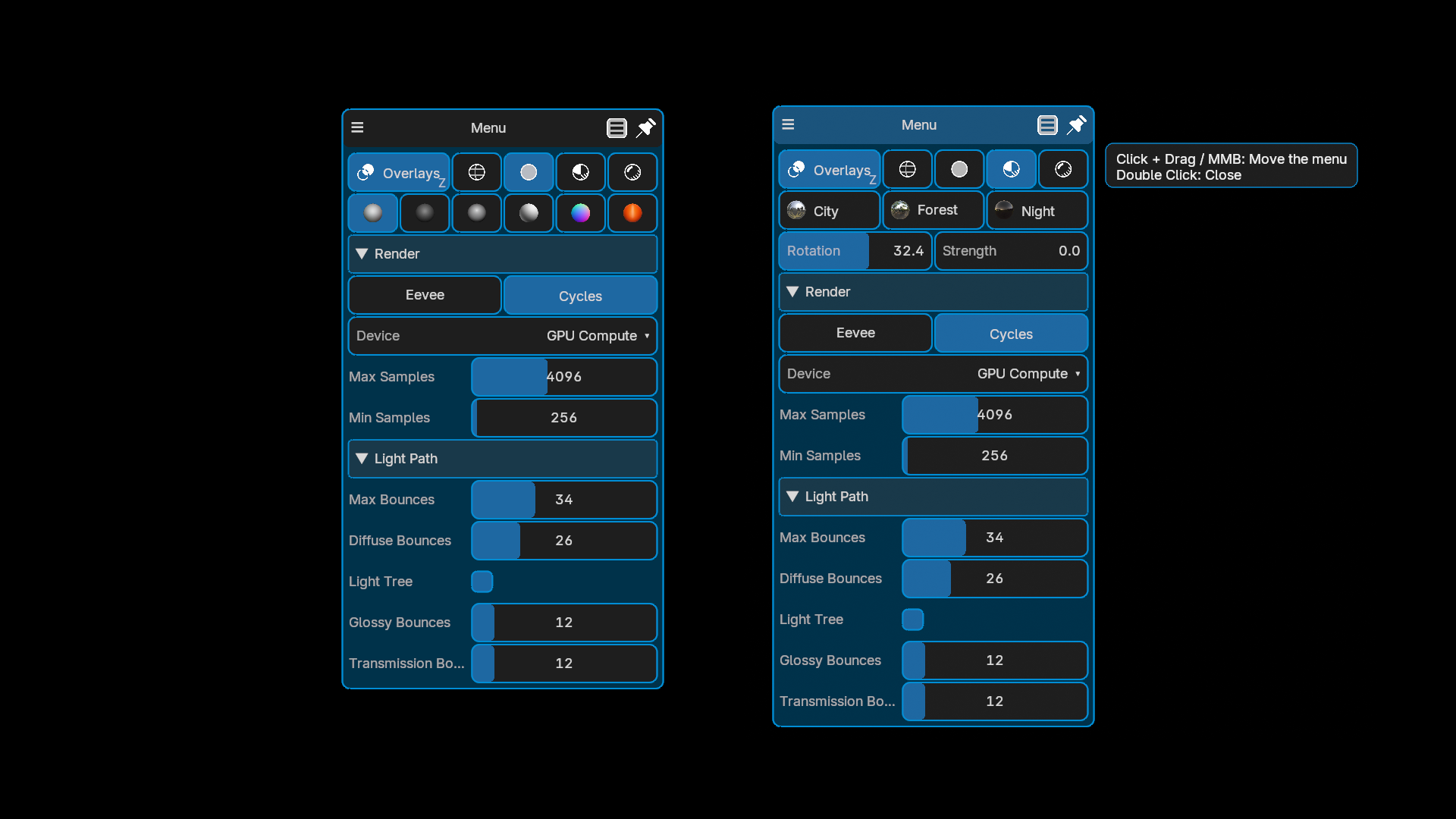
Layout Menus — Multi-column floating panels.
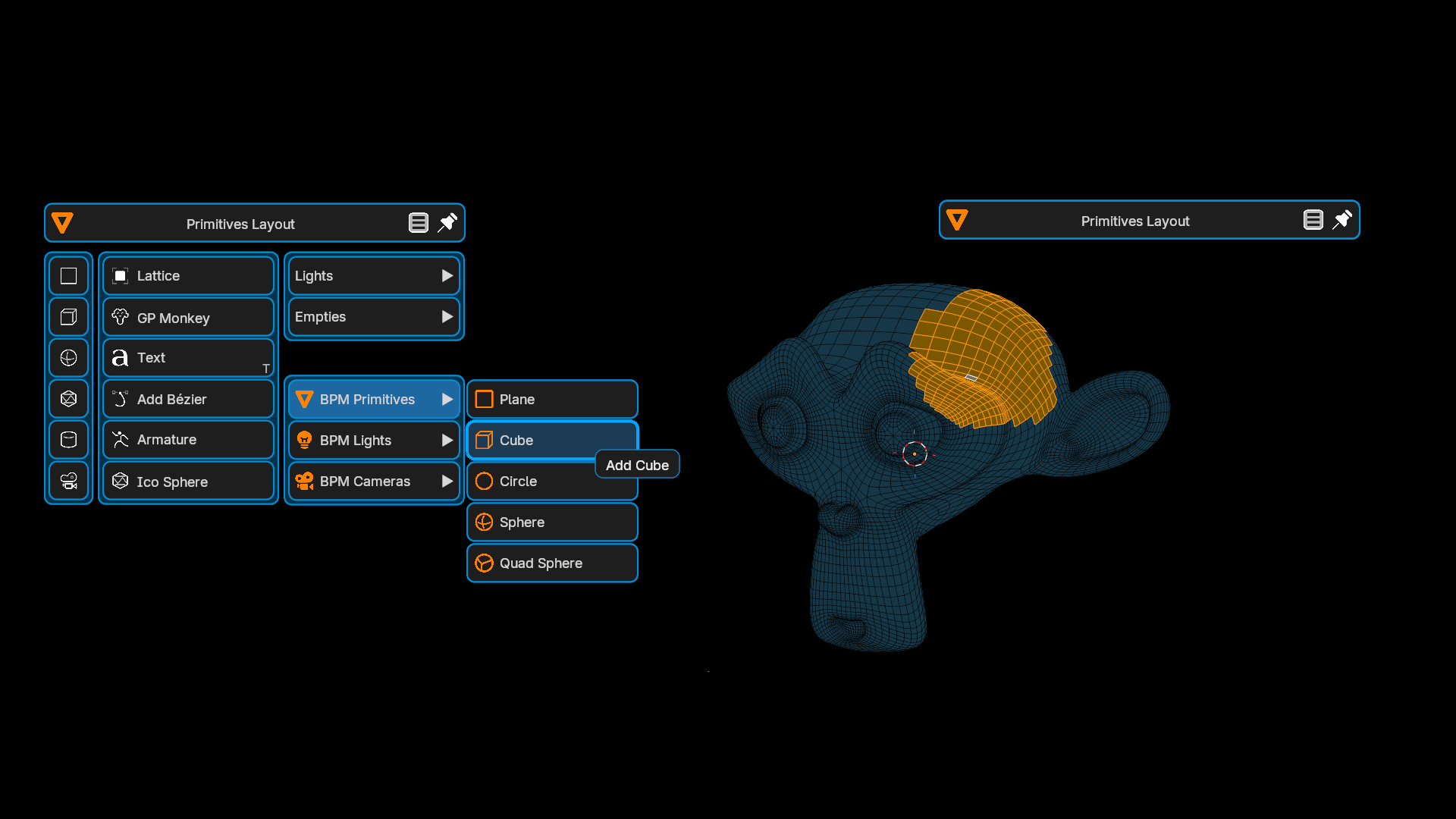
Nested menus — Pie inside pie, pie calling a simple menu, etc.

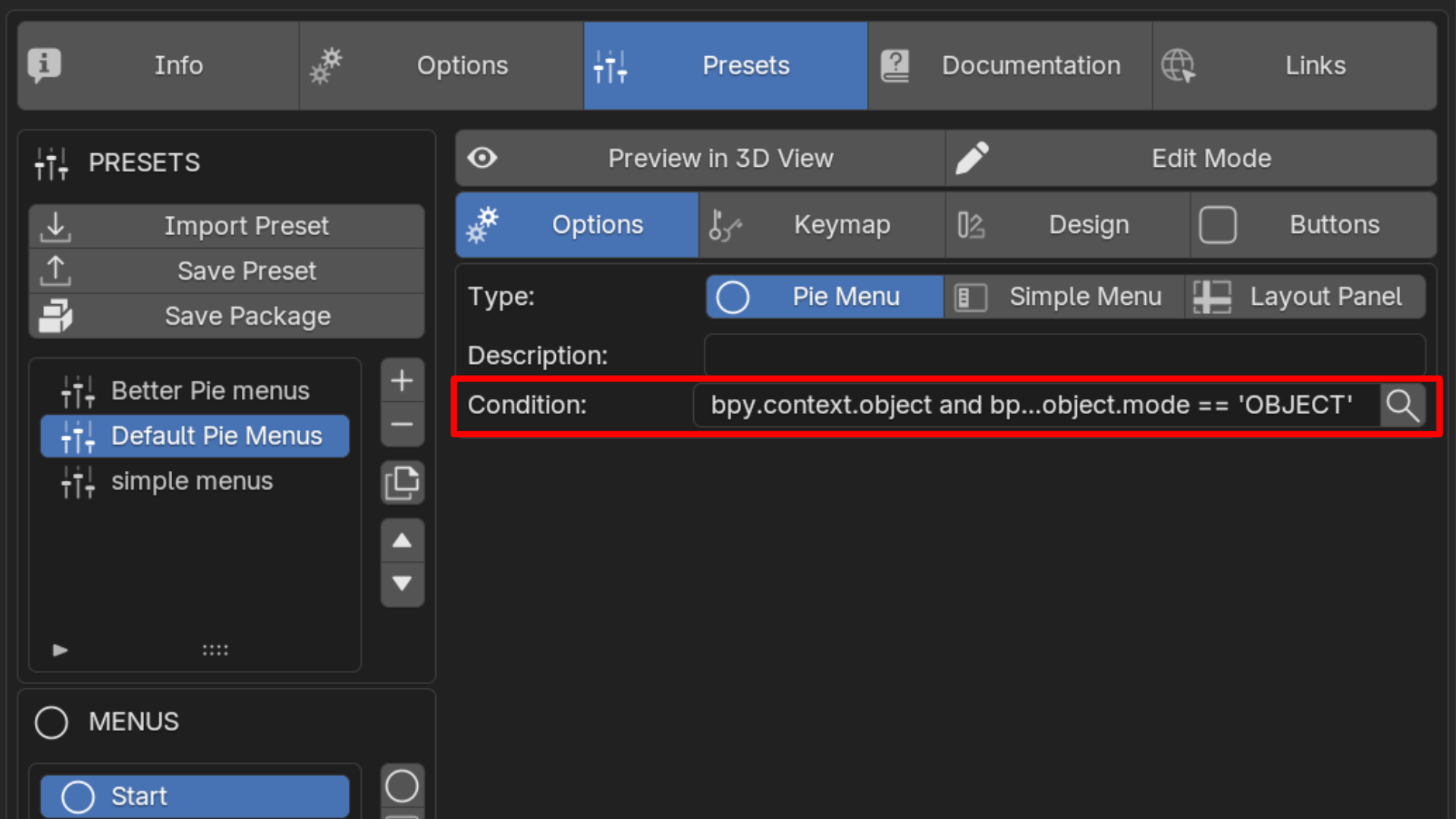
Conditions — Show/hide buttons based on mode, selection, etc.
States — Button changes color/label when a property is active.
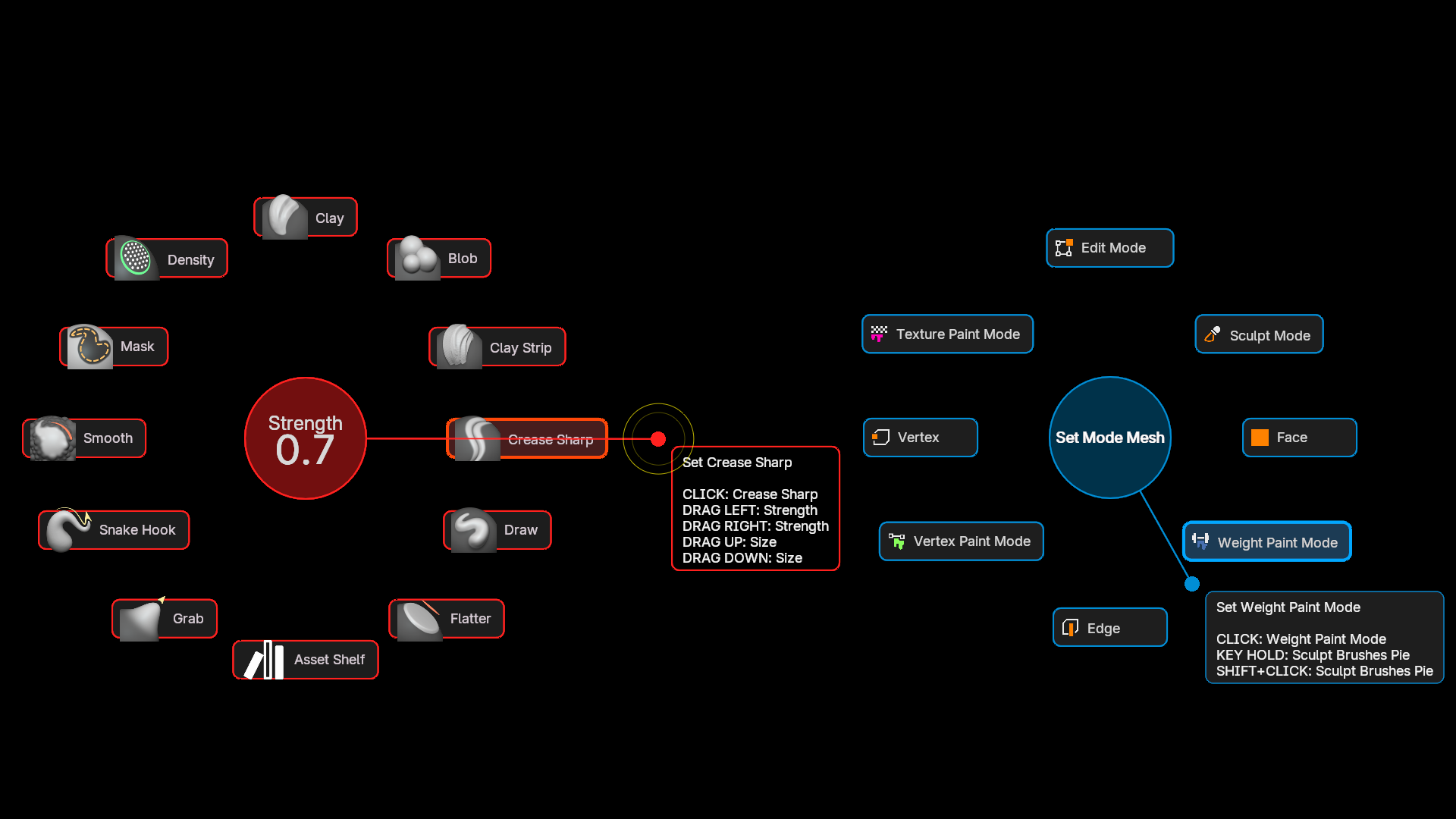
Trigger Variants — One button, many actions (Shift+click, drag, etc.)
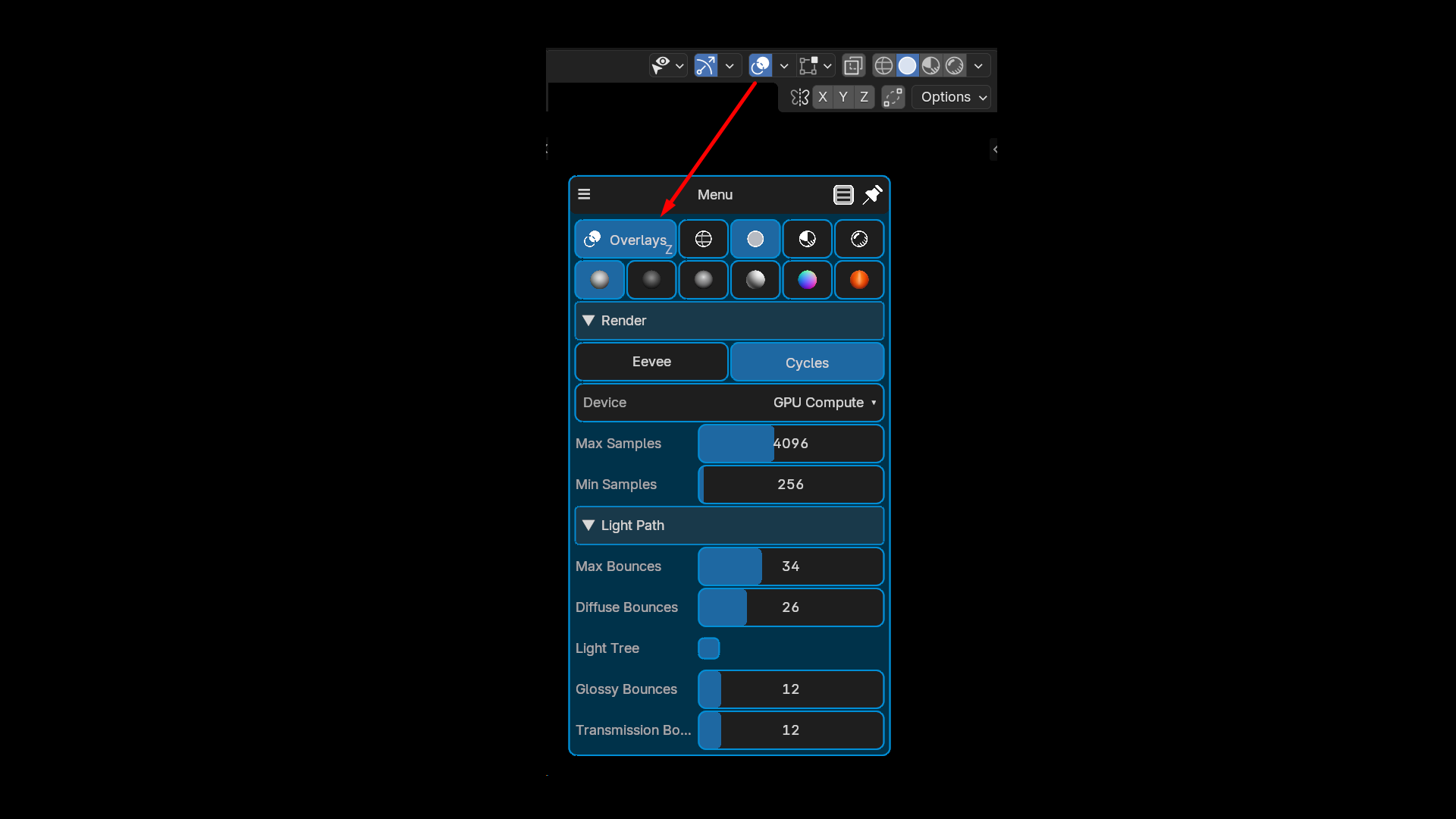
Sliders, Color pickers, Enum lists — Interactive widgets inside menus.
Drawers — Sliding panels that appear on hover.
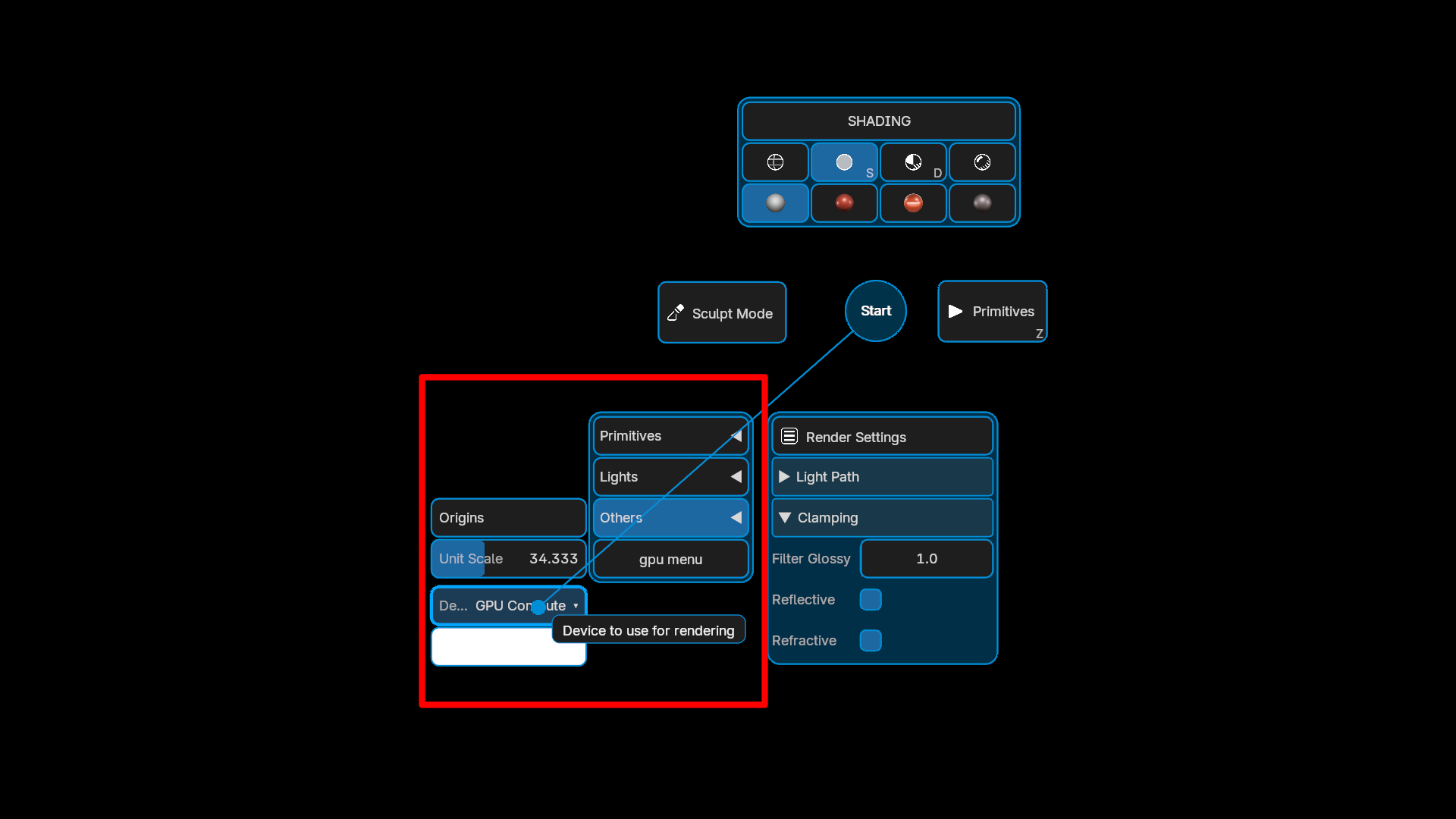
Custom design — Colors, fonts, sizes — per menu.
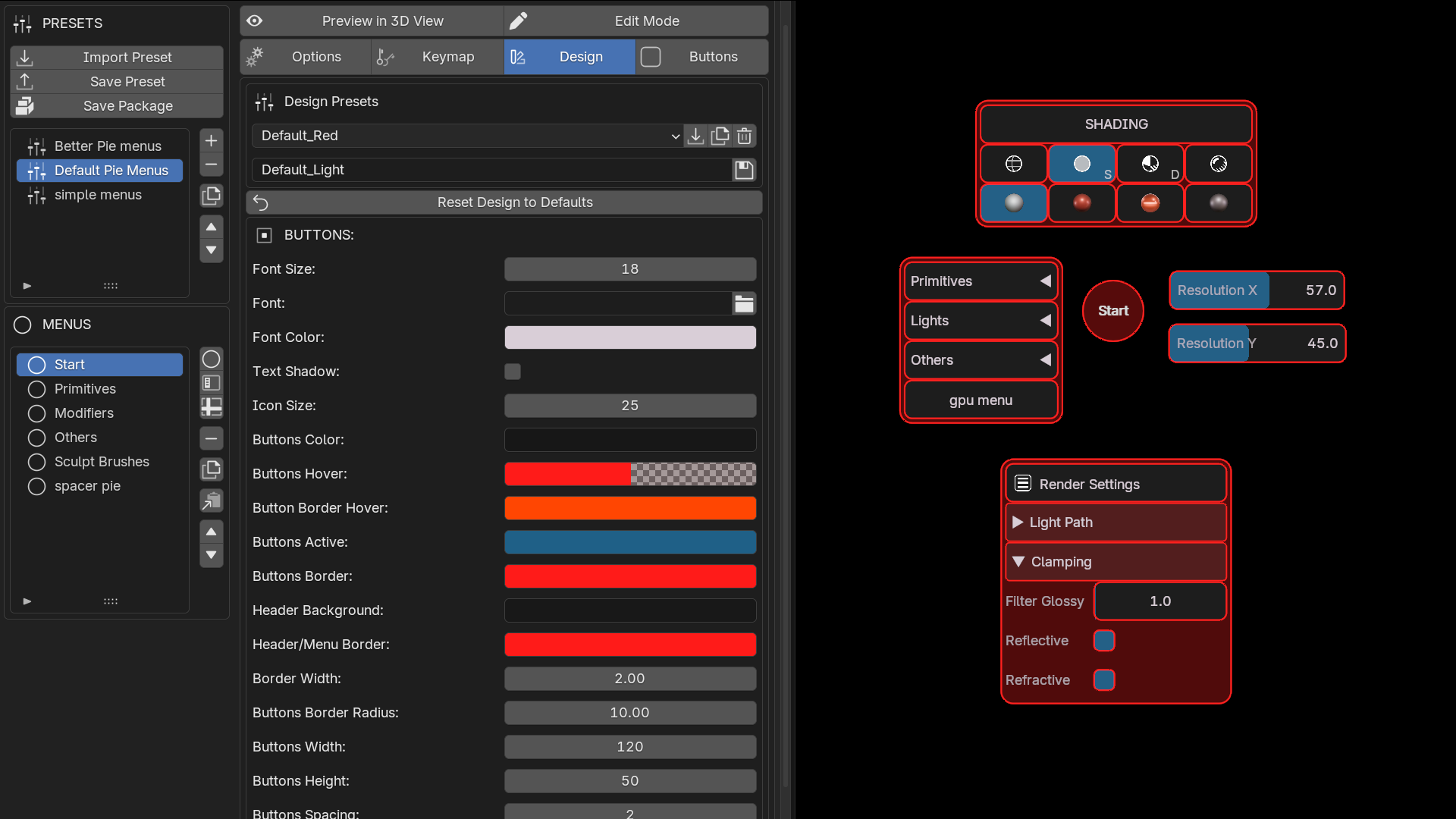
Edit Mode - Create and edit your menu directly in the 3D view.

Arrange Buttons - Arrange the Pie Menus buttons.

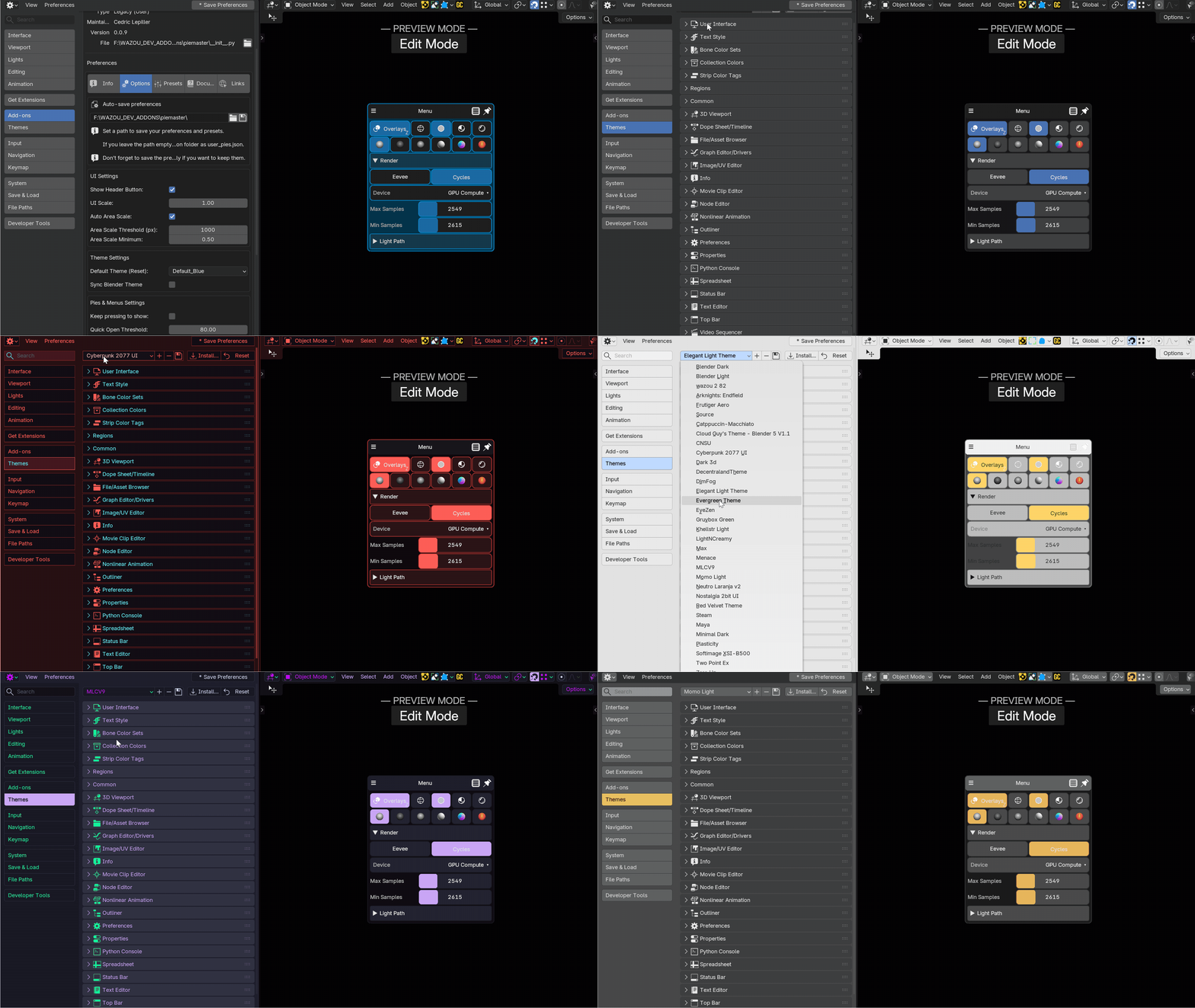
Sync Blender Themes - Use Blender themes colors.
New to PieMaster?
Start here: Quick Start (5 minutes) — build your first pie menu from scratch.