What is PieMaster?
PieMaster lets you build your own menus, your workflow, using Blender's tools or tools from any add-on you own. Right-click, capture, done.
No default Pie Menu limits. Full GPU. Packed with features.
Instead of digging through panels and searching for shortcuts, your tools sit exactly where your cursor already is.
Not Just Blender. Every Add-on You Own.
If it shows up anywhere in Blender's UI, PieMaster can turn it into a button, including tools from your other add-ons. Right-click it once, and it's captured into your menu. No coding, no digging through Python paths.
- Right-click capture — grab operators and properties directly from Blender's interface
- Any add-on, any panel — not restricted to native Blender functions
- No scripting required — point, click, and it's in your menu
Three Menu Types (Plus One That Never Closes)
Pie Menus — Basic & Layout
Radial menus that open at your cursor. Fast, fluid, and right where you need them, with instant quick-action on key release.
- Basic mode — classic radial pie with center circle and trail
- Layout mode — no center circle, free spatial layout instead of fixed directions

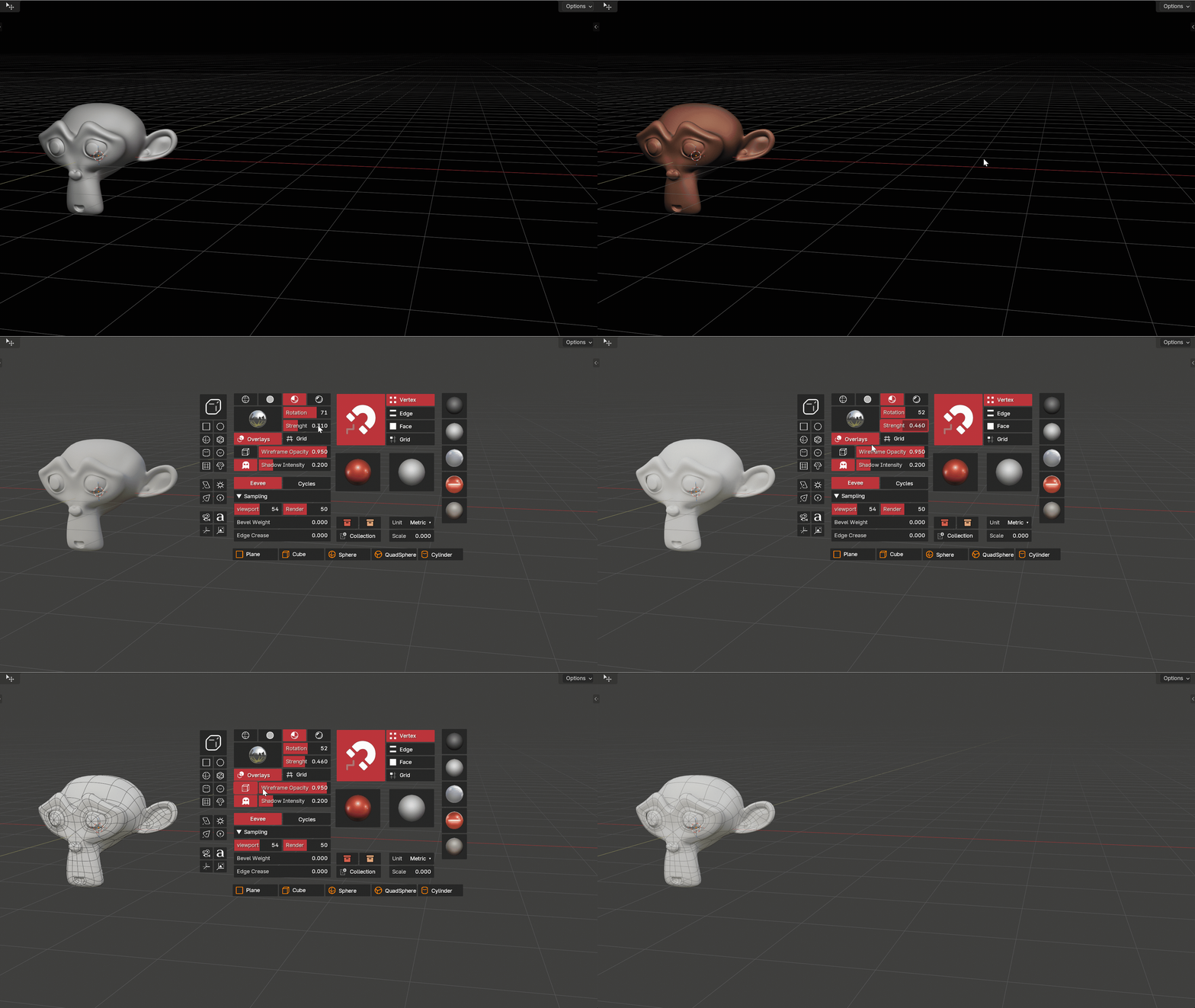
Simple Menus
Clean dropdown-style menus for linear workflows. Group actions, tools, or operators in a compact list, always exactly where your mouse is. Stays visible after use, with auto open/close support.

Layout Menus
Column-based layouts for complex toolsets. Organize buttons in a structured grid and build powerful custom panels right in your viewport. Resize each column independently.

Consistent Menus (LOCKED)
Pin a Simple or Layout menu to a fixed spot on screen and it stays there, always visible, no keymap needed. Set an Auto-Show condition and it opens and closes itself based on your context: sculpt mode, edit mode, a selected tool, anything you can write a condition for.
- Fixed position — anchored to a screen corner/edge, never drifts
- Auto-show by condition — shows only in the mode/tool/editor you pick
- Works in any editor — not limited to the 3D Viewport
- One-click declutter — Ctrl+Click the header button to toggle all LOCKED menus at once
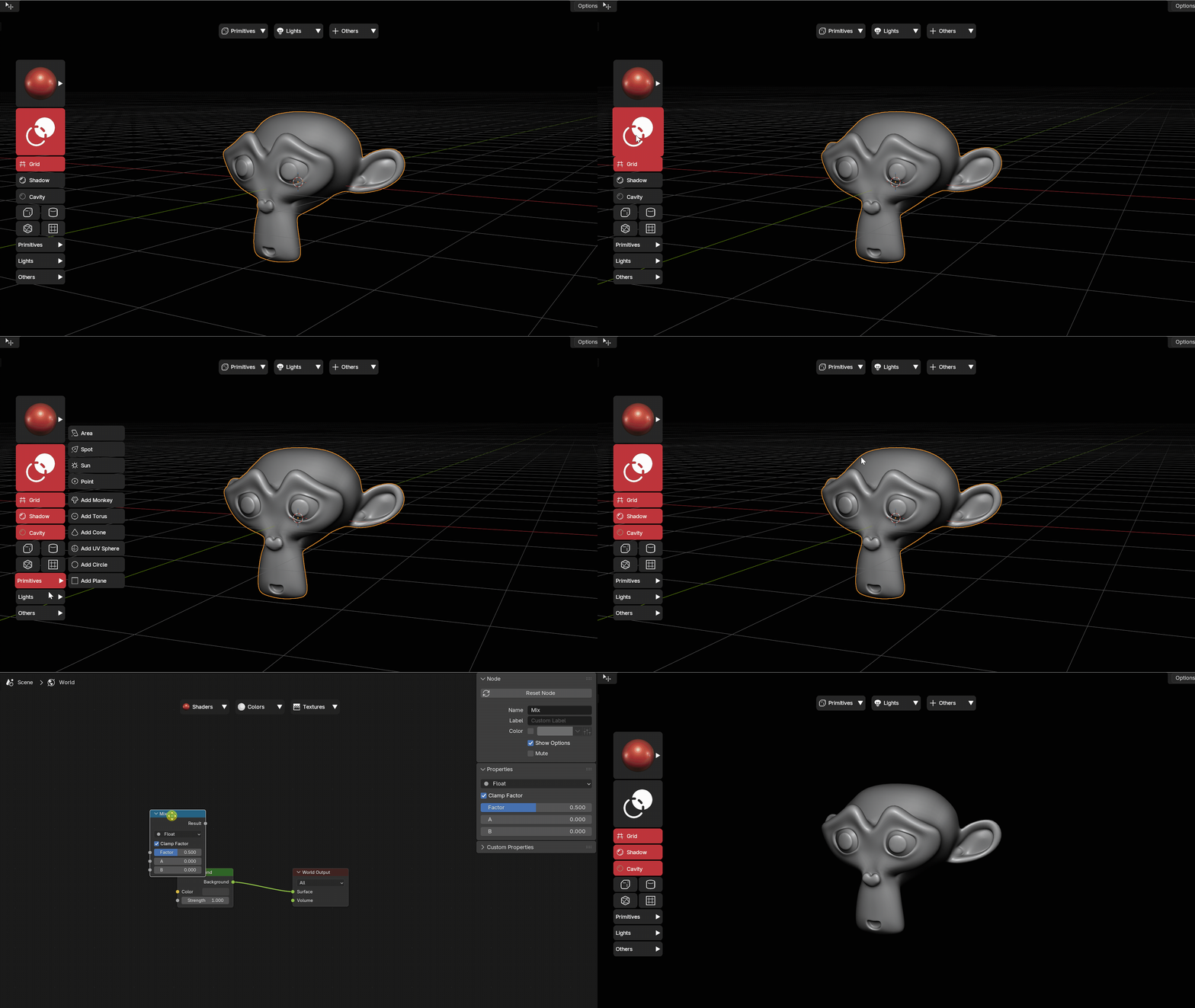
Create and Edit Menus in Seconds
Build everything directly in Blender's preferences or right in the 3D view with Edit Mode. Click any button to edit it on the spot: change its label, icon, trigger, size, or position.
- Click to edit — select any button and modify it instantly
- Drag to reorder — rearrange buttons freely in your layout
- Live preview — see changes in real time as you build
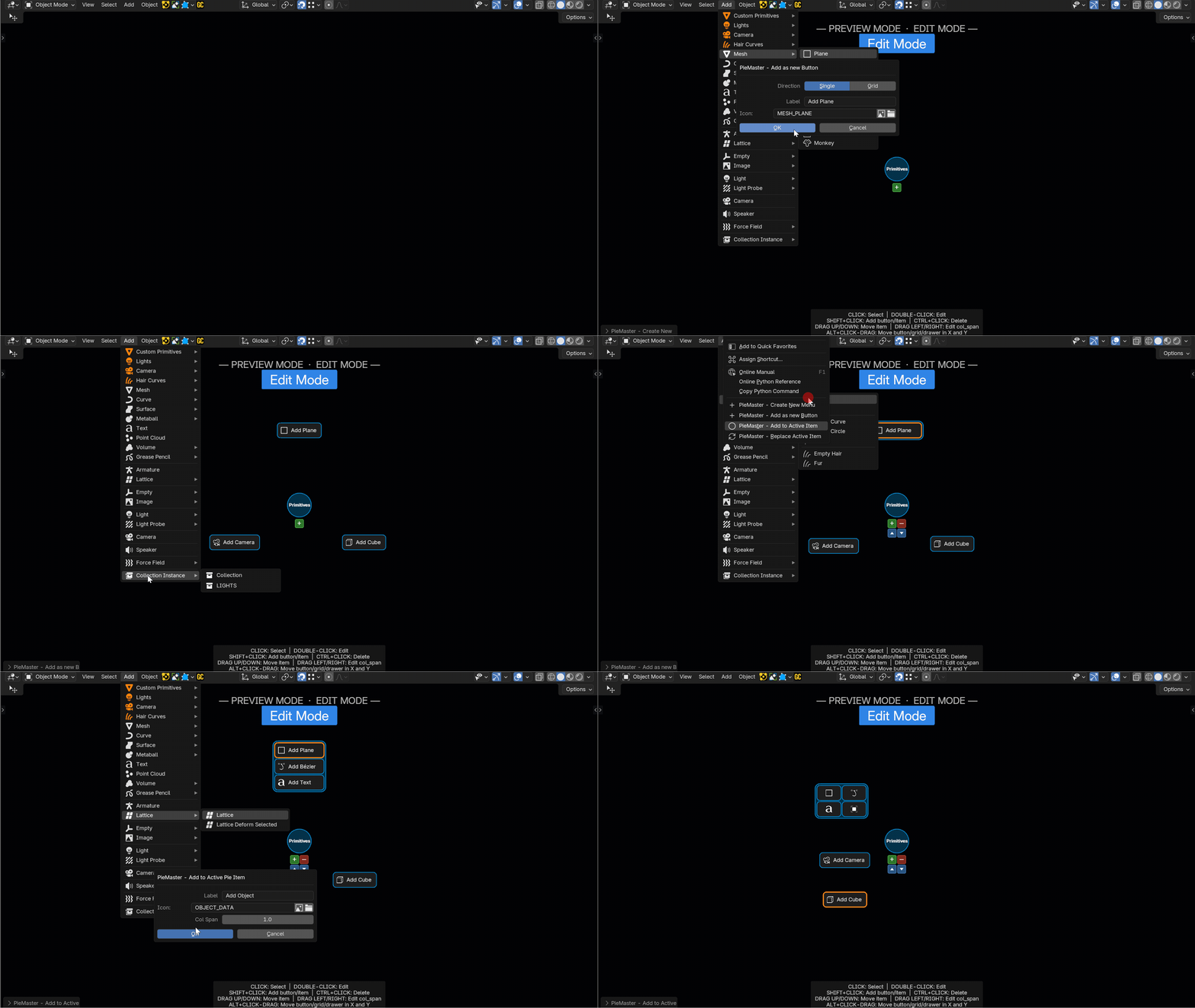
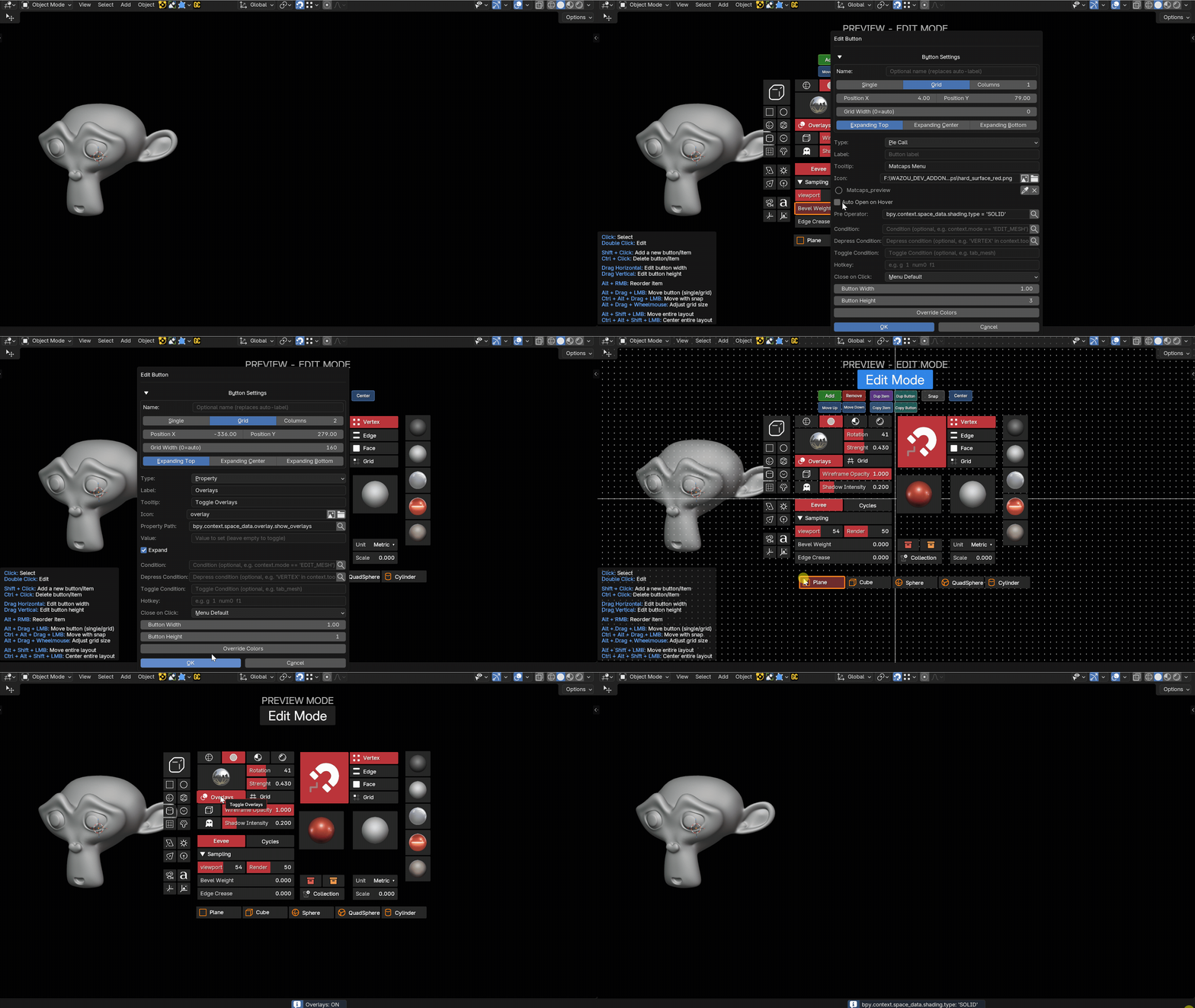
As Many Buttons as You Need
Add as many items as your workflow demands. No arbitrary limit holding you back.
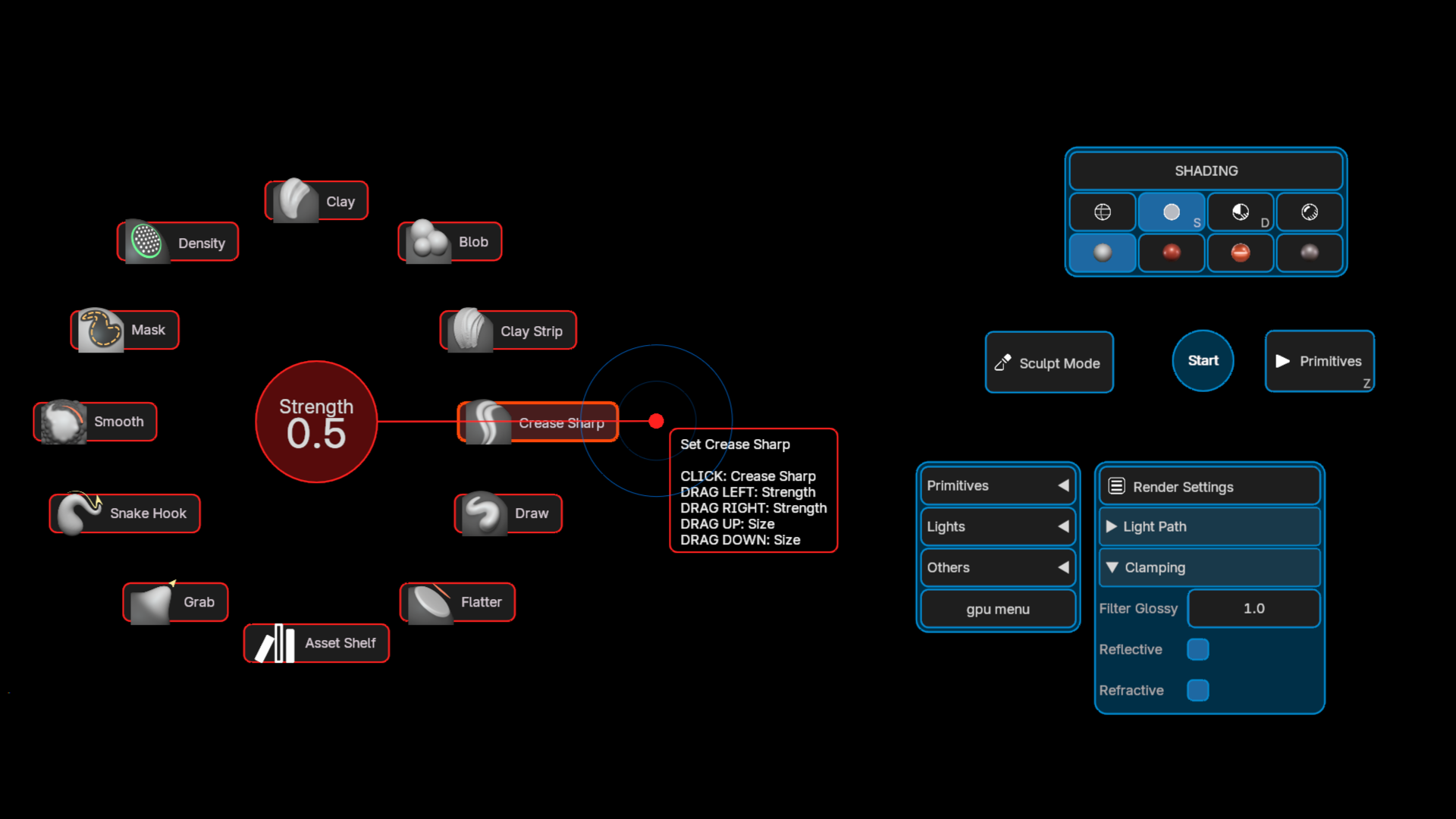
Button Types: Singles, Grids, Sliders & More
Every menu is built from flexible building blocks. Mix single buttons, grid groups, and sliders in the same menu. On pie menus, drag buttons to any position and create fully custom spatial layouts.
- Single buttons — classic action triggers
- Grids — compact multi-button groups
- Sliders — adjust values directly in the menu
- Drawers/Menus — add items in the drawer (Operators, Properties, etc.), with rows and icon-only mode
- Row Span — resize button height for custom grid layouts
- Free placement — drag buttons anywhere on pie menus
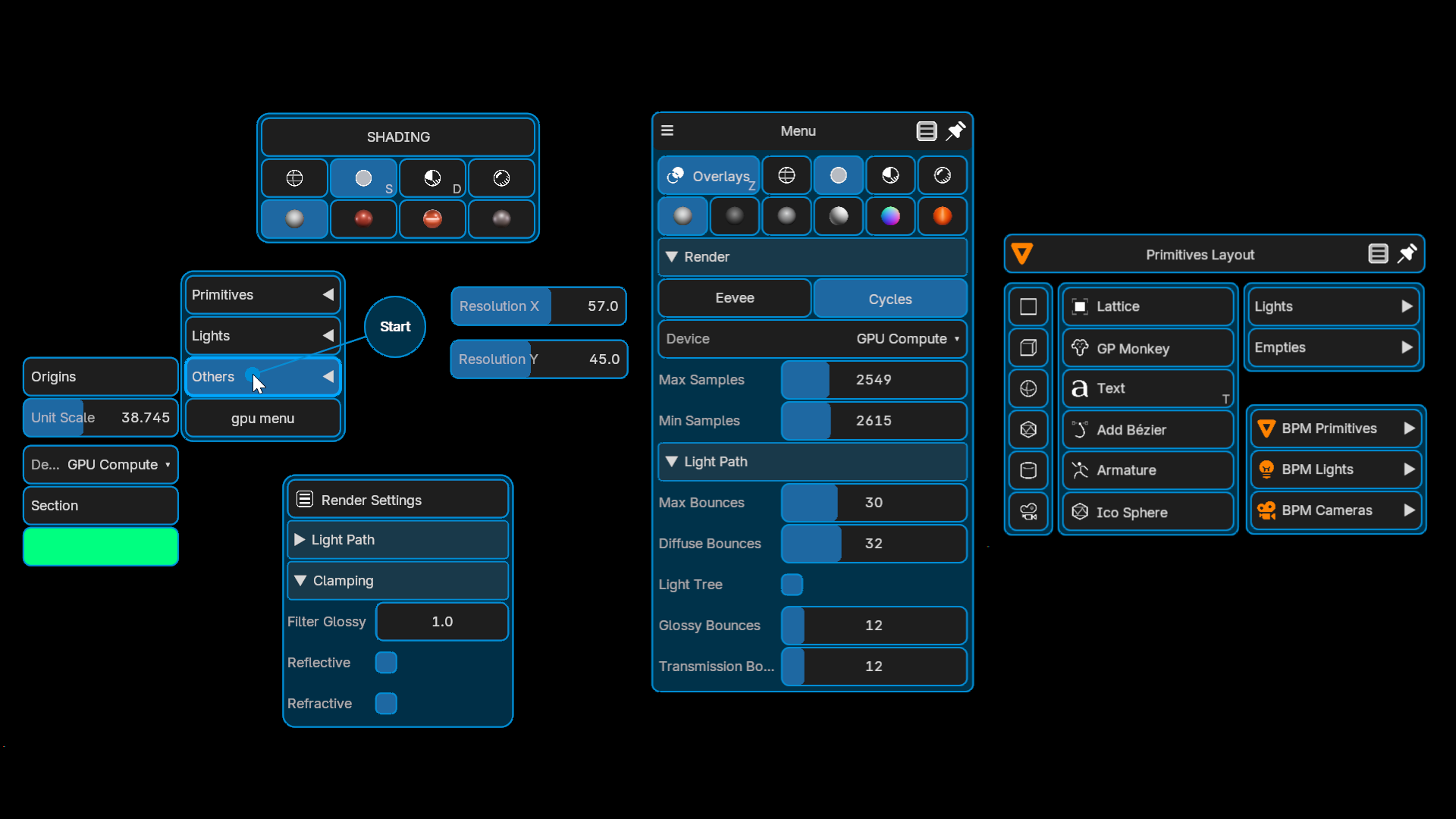
Arrange Buttons Your Way
On pie menus, nothing is locked. Move buttons and grids freely across the surface, with a snap grid to help you place them exactly.

Design Every Detail
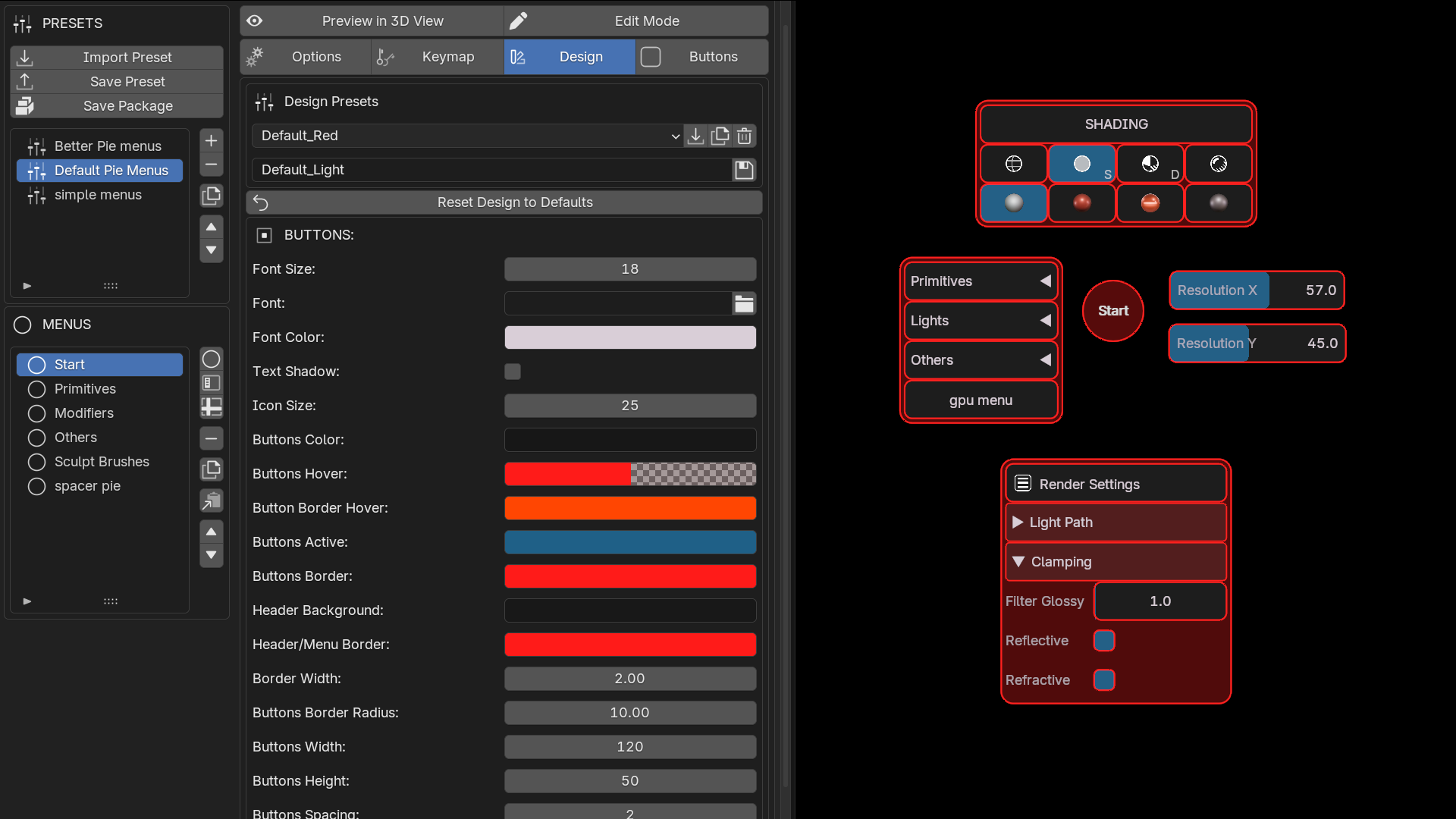
Customize each menu independently: background color, text color, font size, border radius, opacity, item height, and more. Use your own PNG files as icons on any button. Add sound feedback on trigger.
- Colors & fonts — per menu, per button
- Custom icons — any PNG file as a button icon
- Sound feedback — audio on trigger
- Share your presets with friends or teammates
40+ Triggers & Smart Conditions
Each button supports over 40 trigger types. Run operators, execute Python, toggle properties, open nested pies. Combine with conditions at the menu, button, or trigger level to show only what's relevant.
- Operators — run any Blender operator with custom parameters
- Python — execute any script directly from a button
- Properties — toggle, set, or cycle any value
- Conditions — per menu, per button, per trigger

Nested Pie Menus
One pie can open another. Build layered menu systems where each level reveals exactly the right set of tools.
- Unlimited depth — nest pies as deep as needed
- Smart key inheritance — hold trigger key flows through nested levels
- Quick-action — release key to instantly execute on a single item

Gestures — One Shortcut, Many Menus
Draw a shape on a 3x3 grid while a shortcut is held, and the shape decides which menu opens. Every gesture on the same key combination shares a single Blender keymap entry, so ten menus on Ctrl+drag cost one shortcut instead of ten.
- No more hunting for free keys — keep one combination and give each menu a shape
- On menus and on buttons — a button's Global Shortcut takes a gesture too
- Fully styled — line, dots, grid size, and an option to block the click under the cursor

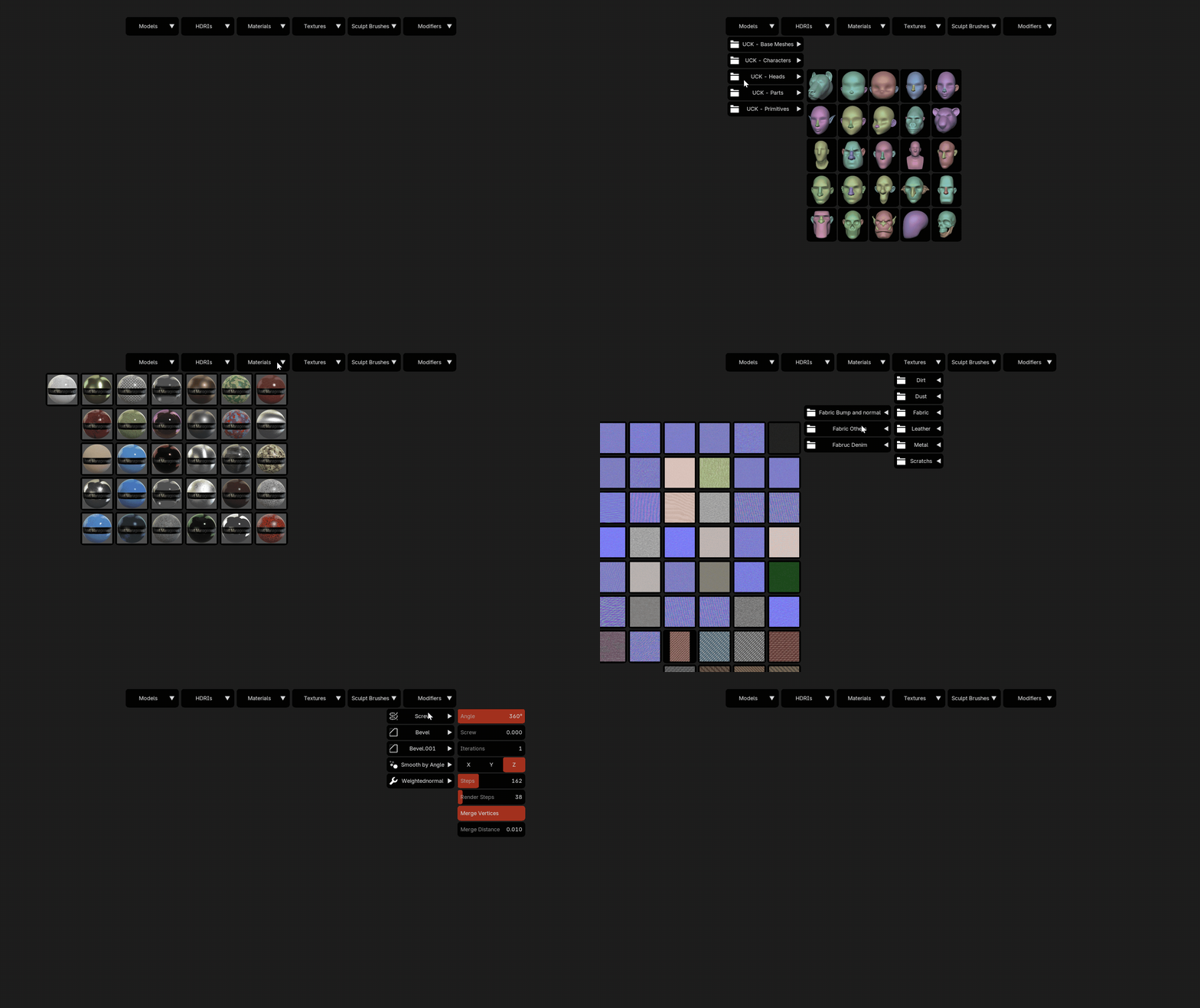
Drawers That Build Themselves
A drawer does not have to be filled by hand. Point it at a folder of assets, at the modifier stack of the active object, or at a Python function, and its buttons are built from the scene every time.
- Modifiers — one sub-drawer per modifier, with its parameters and actions, no script to write
- Asset folders — models, textures, HDRIs and materials, imported on click
- Python — whatever your function returns, laid out from the drawer settings
Full GPU
Every menu is rendered directly on the GPU. Custom colors and fonts, with instant response and zero performance cost no matter how complex your menu is.
Blender-Native Look
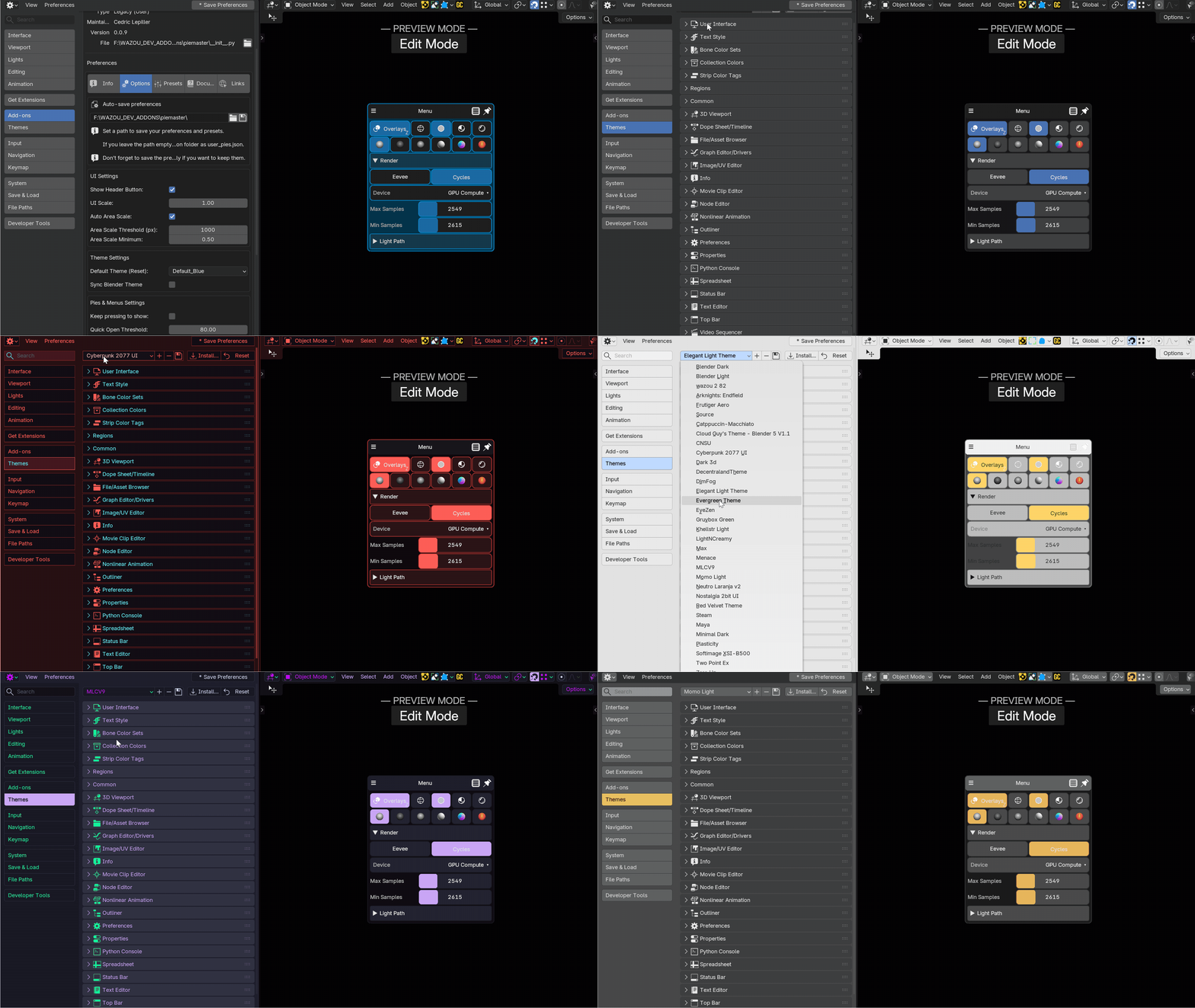
Enable automatic theme sync and PieMaster matches Blender's active color theme, always consistent, always at home in your UI.
Share & Reuse
Export your entire setup, menus, design, keymaps, as a single file. Share with teammates, sell your workflow, or back up your setup in seconds.
Everything Inside PieMaster
- Unlimited buttons per menu
- Full GPU rendering, smooth and fast
- Pie menus (Basic & Layout mode), simple menus, layout menus
- LOCKED consistent menus, auto-show by condition, any editor
- Capture buttons from any add-on's UI, no coding
- Visual editor with click-to-edit buttons
- Free button placement on pie menus
- Single buttons, grids, and sliders, with row span
- 40+ trigger types per button
- Conditions, per menu, button, and trigger
- Nested pies with smart key inheritance
- Custom colors, fonts, and border radius
- Custom PNG icons on any button
- Sound feedback on trigger
- Blender theme auto-sync
- Full keymap manager, with gestures sharing one keymap entry per key combination
- Drawers built from the scene: asset folders, the modifier stack, or a Python function
- Search Prop fields and PieMaster variables, readable from any path, label or script
- Import / export presets
Ready to try it? Head to Installation to get set up, then follow the Quick Start (5 minutes) to build your first pie menu.