Drawing Shapes
Every decal is made of shapes. This page shows how to draw each one and how to edit it with its handles.
The shape buttons
In the Create section of the editing panel, each button starts a drawing tool. Press Esc to cancel while drawing.
| Shape | Description | How to draw it |
|---|---|---|
 Panel |
Rounded rectangle | Drag a corner to the opposite corner |
 Slanted Panel |
Leaning rectangle (parallelogram) | Drag |
 Triangle |
Triangle with a movable apex | Drag |
 Circle |
Circle or ellipse | Click the center, drag the radius |
 Groove |
Straight capsule groove | Drag |
 Vents |
Repeated horizontal slots | Drag |
 Screw |
Domed screw with a recess | Click the center, drag the radius |
 Text |
Editable text with font selection | Click to add, then type |
 Import Image |
Image used as color, height or mask | Pick a file |
 Polyline Groove |
Groove along clicked points | Click points |
 Polyline Panel |
Filled closed polyline | Click points |
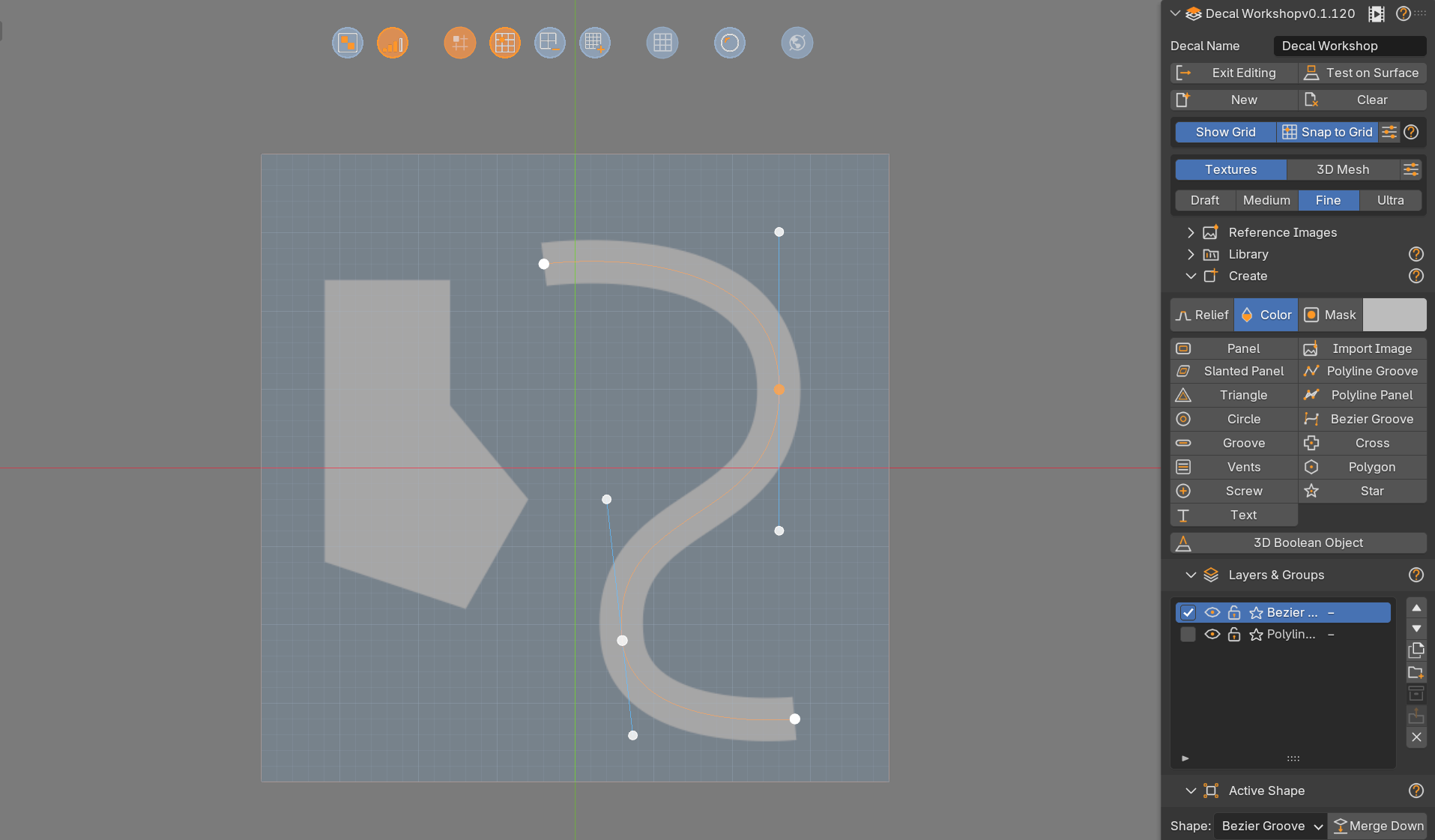
 Bezier Groove |
Curved groove with tangents | Click-drag points |
 Cross |
Plus sign | Drag |
 Polygon |
Regular polygon | Click the center, drag the radius |
 Star |
Star with a number of points | Click the center, drag the radius |

Before you draw
The Relief / Color / Mask buttons decide what the new shape does. See Create Decal and the Canvas.
How to draw a polyline
- Click Polyline Groove (or Polyline Panel for a filled closed shape).
- Click successive points in the viewport.
- Press Enter or right click to confirm.
| Key | Action |
|---|---|
| Backspace | Remove the last point |
| Esc | Cancel |
A path supports up to 32 points. New paths immediately enter point editing.
How to draw a Bezier curve
- Click Bezier Groove.
- Click and drag to set the position and the tangent of each point. Release before placing the next one.
- Press Enter or right click to confirm.
Editing a path
Press Tab or use Edit Points to toggle point editing.
- Drag an anchor to move it. For a Bezier, select an anchor to show its two blue tangent handles.
- Tangents can be Aligned or Free.
- G moves the active point. Shift gives precision, Ctrl snaps to the grid.
- Insert Point subdivides the segment after the active point. Remove Point keeps at least two anchors.
- Closed Path joins the last point to the first.
- Polyline points have a Corner type: Sharp, Round or Chamfer.
- Esc exits point editing first.
Moving and resizing with handles
Select a shape to show its handles.
| Handle | Action |
|---|---|
| The shape itself | Drag to move |
| Small corner handles | Resize proportionally from the center. Hold Alt to stretch freely |
| Side handles | Change one dimension (not on groups) |
| Point above the shape | Rotate |
| Pink handle (Star, Polygon) | Change the number of sides or points, from 3 to 64 |
| Blue handle (Star) | Change the inner radius |
Press X or Y while scaling or dragging a corner to limit it to one axis.
Cancel any drag
Esc or right click cancels the current handle drag and restores the previous value.
On-shape buttons
Small buttons around the selected shape control its look directly in the viewport.
| Control | Click | Drag horizontally |
|---|---|---|
| Add / Cut | Cycles the operation | Adjusts the relief height (right increases) |
| Corner widgets (panels) | Cycles Round, Soft, Flat | Adjusts the radius |
| Bevel | Cycles the profile | Adjusts the bevel width |
Hold Shift for precision, Ctrl for steps. Grid Options > Shape Controls hides these buttons.
Per-corner control
Enable Per-Corner Controls on a panel to set an independent radius and style for each of its four corners.