Place on Selection
 Place on Selection puts a decal exactly on the faces it was made from, following the surface. It is the last step of the From Selection and Draw on Surface workflows.
The Selection Pattern box
Decals created from a selection or with Draw on Surface show a Selection Pattern box at the top of the panel.
| Control | Use it to |
|---|---|
| Show Pattern | Show or hide the pattern overlay on the canvas |
| Opacity | Set the opacity of the overlay |
| -90 / +90 | Rotate the whole canvas by a quarter turn |
| Target name | Shows the object the decal is anchored to |
 Draw on Surface |
Add a path to the pattern |
| Place on Selection |
Place the decal on its selection |
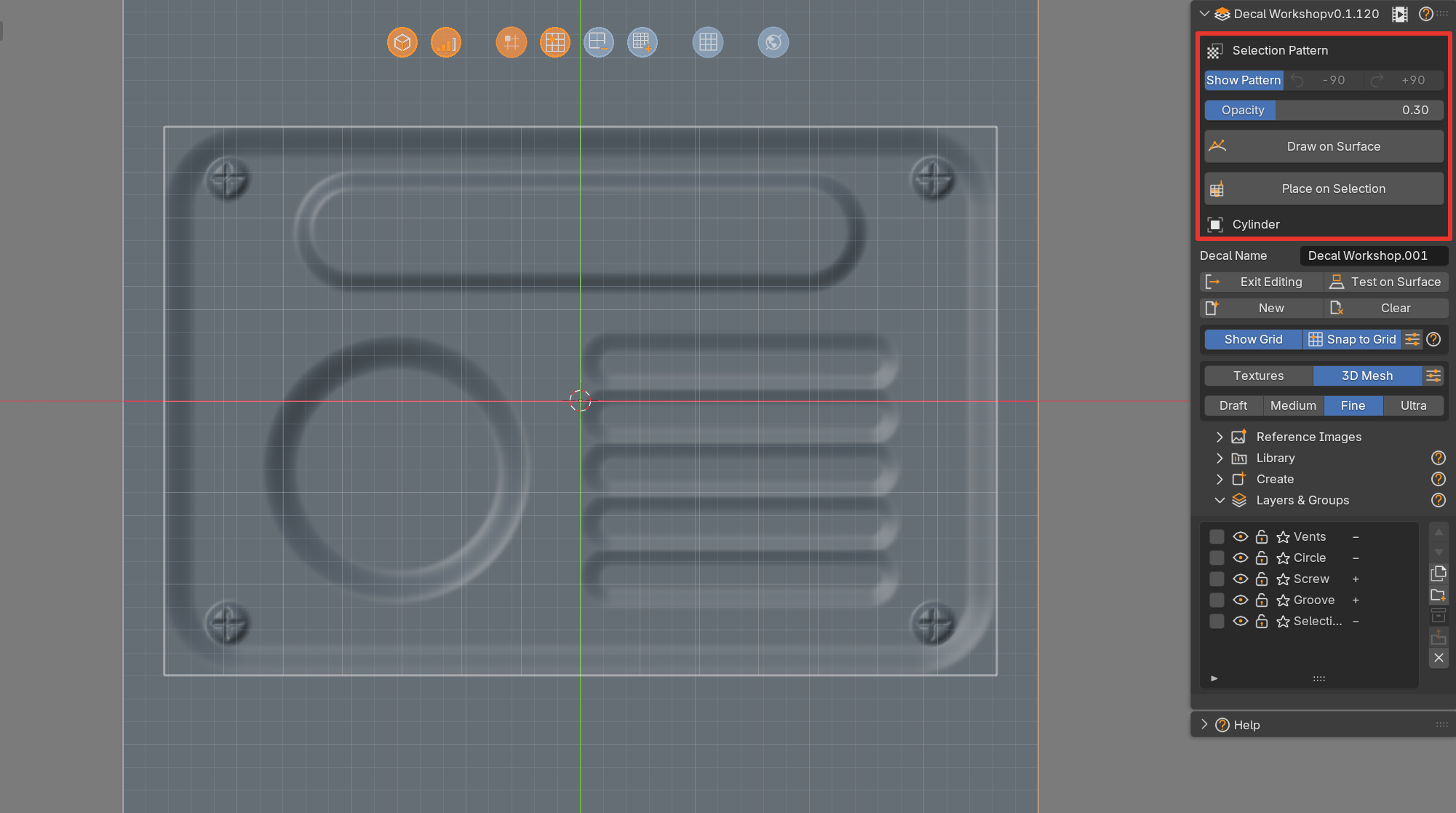
The -90 / +90 buttons rotate everything: layers, groups, modifier frames, the reference image and the pattern itself.
How to place a decal on its selection
- Create a decal with From Selection or Draw on Surface.
- Draw and edit shapes on the canvas.
- If needed, rotate the canvas with -90 / +90.
- Click Place on Selection.
Decal Workshop returns to the target scene and places the decal on the selection, following the surface.
Rotate before placing
Once the decal is placed, its pattern can no longer rotate. Use -90 / +90 before you place it.
How to change a placed decal
Running Place on Selection again updates the existing placed decal instead of creating a duplicate.
To edit the decal after placing it:
- Select the placed decal.
- Click Edit Decal. The canvas reopens.
- Change shapes, or add paths with Draw on Surface.
- Click Place on Selection or Update to refresh the placed decal.
No Adjust on these decals
A decal placed on a selection follows its faces, so it has no Adjust button and cannot be moved by hand. The panel shows Follows its selection: Edit Decal, then Update. Edit the pattern, then Update.
When Edit Decal is available
Edit Decal works while the decal scene still exists in the file.
Adding paths to a placed decal
You can also click Draw on Surface while a decal placed on a selection is active. The new path is added to the pattern, following the surface, and the placed decal refreshes right away.
Quick reference
| I want to... | Do this |
|---|---|
| Put a new decal on its faces | Place on Selection |
| Refresh a placed decal | Place on Selection again, or Update |
| Change its shapes | Edit Decal, then Update |
| Rotate the pattern | -90 / +90, before placing |