Modifiers
Modifiers repeat a shape or a whole group without duplicating it: mirrors, rows of screws, rings of vents, staggered patterns. The original stays editable, and the copies follow it.
 Modifiers live in the Modifiers tab of the Active Shape (or Active Group) section.
How to add a modifier
- Select a shape or a group.
- Open the Modifiers tab.
- Click Mirror, Linear, Circular or Pattern.
- Adjust its settings in the box that appears.
Each shape or group has its own ordered stack. In every entry:
| Control | Effect |
|---|---|
| Checkbox | Turns the modifier on or off |
| Name | Rename the modifier |
| Up / Down arrows | Reorder the stack |
| X | Remove the modifier |
You can also add and set up a modifier straight from the viewport. See On-shape buttons.
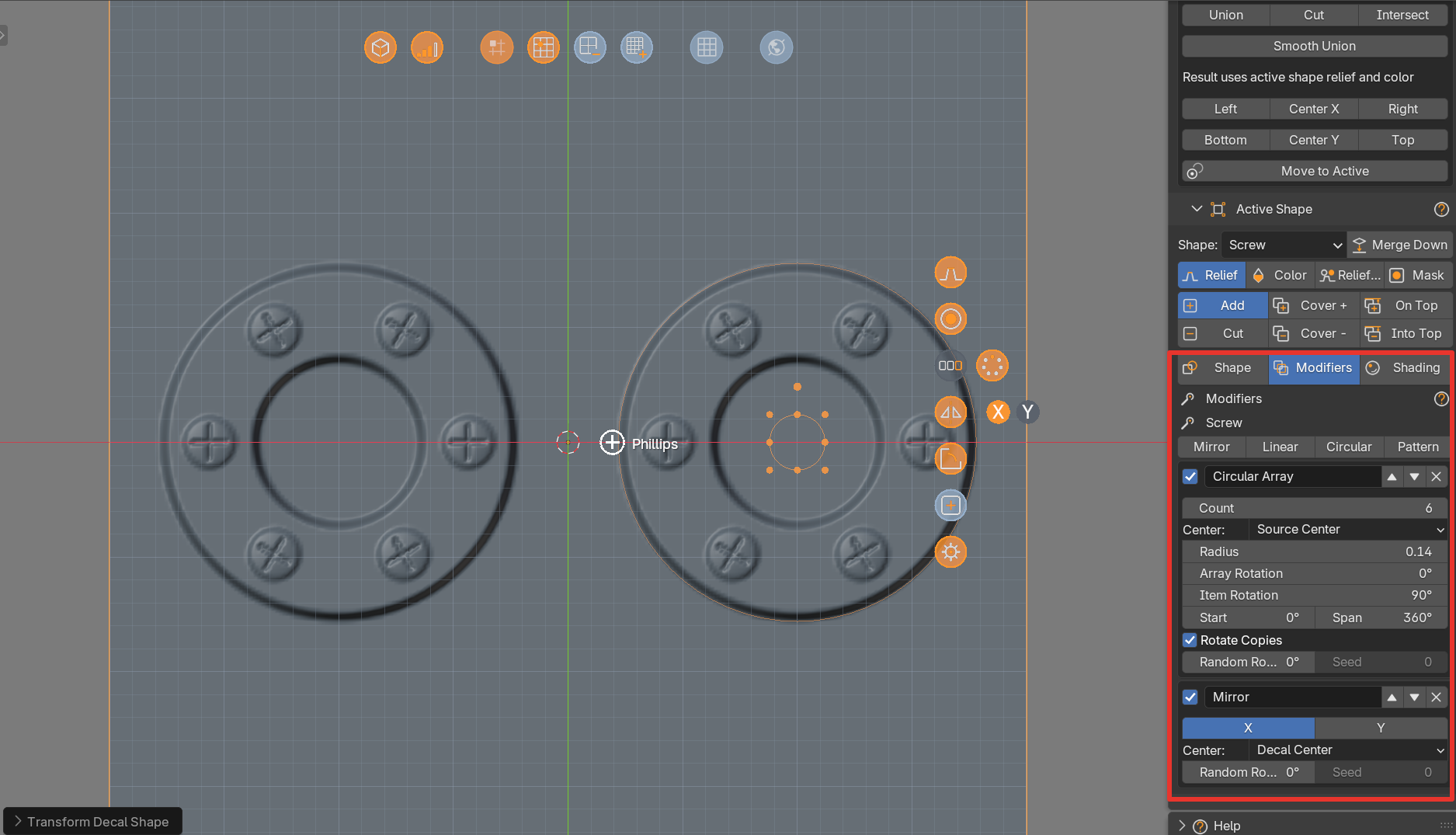
Copies are not layers
The generated copies are not separate layers or Blender objects. Click a copy to select its source, then use the source handles or G / R / S to transform it. Dragging a single copy does not detach or move it.
The four modifiers
Mirror
| Option | Effect |
|---|---|
| X | Mirrors across a vertical line (flips left and right) |
| Y | Mirrors across a horizontal line (flips top and bottom) |
Enable both for four-way symmetry. The original is included. Mirroring keeps the handedness of asymmetric curves.
Linear Array
| Option | Effect |
|---|---|
| Count | Number of copies, including the original |
| Step X / Step Y | Distance between successive copies, in decal axes. Use either sign, or both axes for a diagonal |
Circular Array
| Option | Effect |
|---|---|
| Count | Number of copies, including the original |
| Radius | Radius of the circle the copies sit on |
| Array Rotation | Rotates the whole ring around its center |
| Item Rotation | Adjusts the facing direction of the repeated elements |
| Start | Angle of the first copy |
| Span | Total angle covered by the copies |
| Rotate Copies | Each copy turns to follow the circle. Off: copies keep their original orientation |
A full circle spreads the copies without repeating the end point. A partial arc includes both ends. A count of 1 puts a single copy at the start of the ring. The Circular Array repositions the source shape.
Pattern
A grid of columns and rows.
| Option | Effect |
|---|---|
| Columns / Rows | Size of the grid, original included |
| Step X / Step Y | Distance between columns and between rows |
| Alternate | None: a plain grid. Rows: shifts every second row sideways. Columns: shifts every second column up or down |
| Offset | Size of that shift, as a fraction of a step. 0.5 is a half-cell stagger |
| Center | Centers the grid on the original shape. Off: the original is the bottom-left copy |
Center of the effect
Mirror and Circular Array take a Center:
| Center | Meaning |
|---|---|
| Decal Center | The center of the canvas. Stays fixed when you move the shape |
| Source Center | The center of the modified shape or group. The pattern moves with the source |
| Custom Center | Your own Center X and Center Y |
| Shape / Group | Follows the center of another shape or group, chosen in Reference or with the eyedropper button |
Random Rotation
Every modifier has Random Rotation and Seed. Each copy turns by a random angle up to the value you set, so screws and bolts do not all look the same. Change Seed for another random set. On a group, each copy turns as a whole.
On-shape buttons
Select a shape to see its buttons next to it in the viewport:
| Button | Click | Drag |
|---|---|---|
| Mirror (X and Y letters) | Adds or removes a mirror. Click a letter to toggle that axis | |
| Array | Adds or removes a linear array | Number of copies (right = more) |
| Array X / Y letters | Turns that spacing on or off | Moves the copies |
| Circular | Adds or enables a circular array | Radius (horizontal) and count (vertical) |
For the circular button, Shift + drag changes the array rotation (horizontal) or the item rotation (vertical), and Ctrl + click removes the circular array. For all of them, Shift + click opens the modifier settings, and Ctrl + drag snaps. The array settings also let you add a Pattern grid.
How modifiers behave
- A shape's stack is evaluated before the stack of its parent group.
- A group modifier repeats the whole assembly around one shared pivot. Use it to repeat a complete vent block or a screw cluster.
- Overlapping copies of one source use their maximum relief, so overlaps do not double the height.
- Distances stay in decal units when you resize the source.
- Geometry that leaves the 1 x 1 canvas is cropped on export.
- Ungroup is refused while a group has an active modifier. Disable or remove it first.
- Merged Image layers cannot take modifiers, and neither can groups that contain them.
- Duplicating a shape duplicates its stack independently. A linked instance shares it. See Layers and Groups.
Instance limit
The editor accepts up to 256 instances for a modified shape and 512 for the whole decal. Beyond that an error appears in the panel and the preview keeps its last valid state. Reduce Count, or disable a modifier, to recover. Export refuses an invalid stack.