Preferences
Open the preferences in Blender: Edit > Preferences > Add-ons > Decal Workshop.
The preferences have four tabs: Info, Options, Keymaps and Links. Defaults for new decals are set here. A decal that already exists keeps its own values.
Info
| Option | Effect |
|---|---|
| Check for Updates | Off by default. When on, a Check for Updates button tells you whether a new version is out. This needs Allow Online Access in Blender Preferences > System. When a new version exists, the panel header shows it |
| Documentation | Opens the online documentation |
| Show Addon Help | Shows or hides the small ? help buttons next to the sections of the panel |
| Shop and Discord buttons | Links to the add-on pages and to customer support |
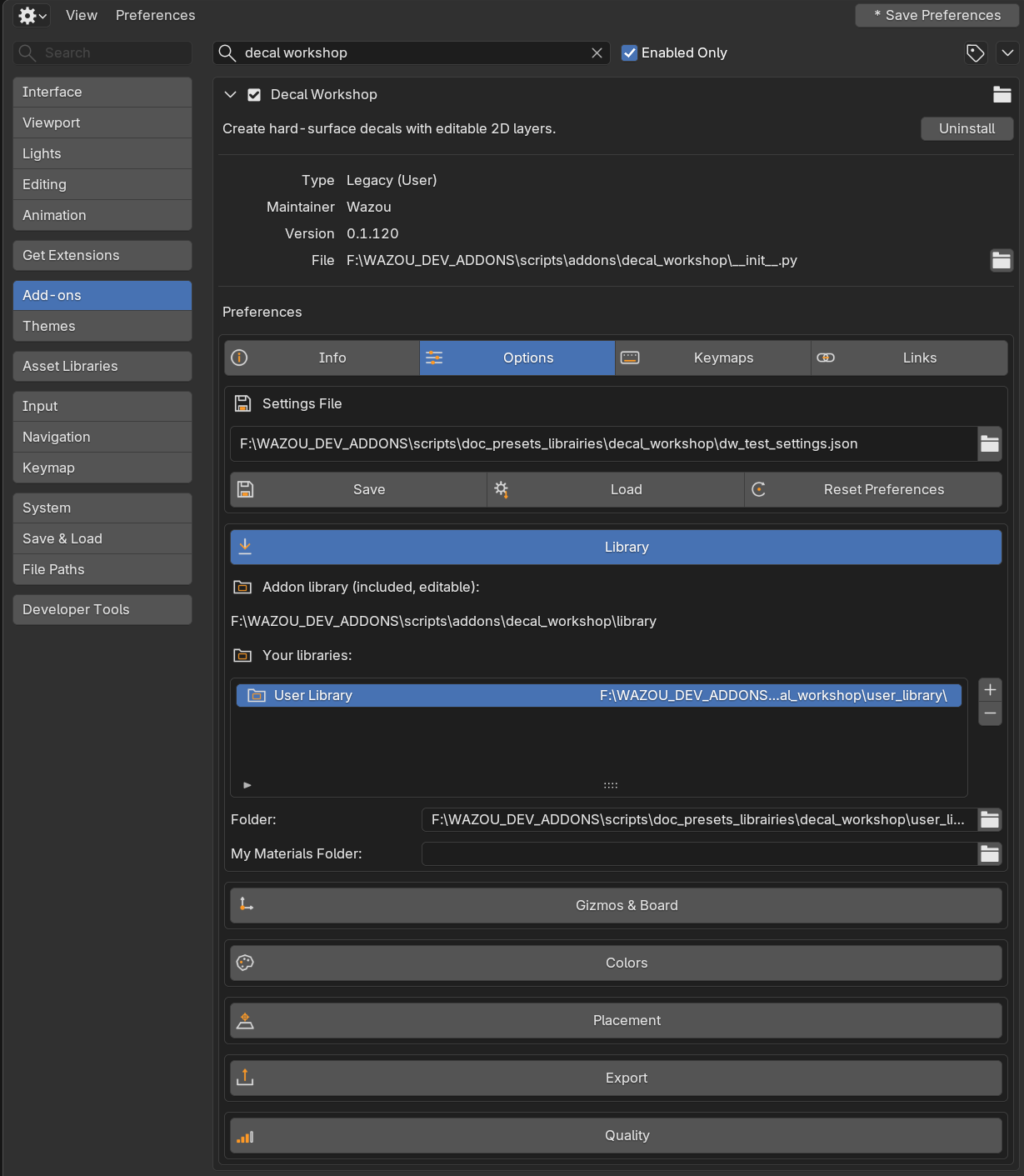
Options
The top of the tab holds the Settings File. Below it, foldable boxes (closed by default) group the settings.
Settings File
| Button | Effect |
|---|---|
| Settings file path | A JSON file. If it already exists, it is loaded right away |
| Save | Writes the add-on preferences and your keymaps to the file |
| Load | Reads them back and applies them |
| Reset Preferences | Puts every preference back to its default |
Use it to carry your setup from one Blender installation to another.
Library
| Option | Effect |
|---|---|
| Add-on library | The folder of the decals shipped with the add-on. It is editable |
| Your libraries | A list of your own library folders. Use the plus and minus buttons to add or remove one, then set its Folder. Each appears as a User Library button in the library |
| My Materials Folder | Where saved materials live. Empty uses the Blender config folder |
See The Library and Materials and Finishes.
Gizmos & Board
| Option | Effect |
|---|---|
| UI Scale | Size multiplier for Decal Workshop gizmos, buttons and viewport labels |
| Follow Blender UI Scale | Off: gizmos keep the same pixel size whatever Blender's scale. Other choices follow Blender's resolution scale |
| Board buttons | The row of buttons at the top of the editing view: Position (Top or Bottom), Vertical Offset, Horizontal Offset, Button Size, Button Spacing, Group Gap |
| Shape buttons | The column next to the active shape: Button Size, Button Spacing, Offset X, Offset Y |
A reset button restores the board layout.
Colors
Change the colors of the editing view: the Canvas Background, a Preset menu (save your own with the plus button), an Adjust All Colors box (Hue, Saturation, Value), and a list of colors for the individual gizmos and overlays. The exports always use the default canvas color. A reset button restores the colors.
Placement
| Option | Effect |
|---|---|
| Projection Grid | Resolution of the grid that wraps a placed decal on its surface, for new placements |
| Parallax | Whether a newly placed decal uses parallax |
| Parallax Strength | Parallax strength of a newly placed decal |
See Place on Surface.
Export
These are the defaults of a new decal.
| Option | Effect |
|---|---|
| Export Resolution | Resolution of the maps saved to the library: 512, 1024 or 2048 |
| Export AA | Anti-aliasing of those maps: Off, 2 x 2 or 4 x 4 |
| Save Scope | What Save As stores by default: Selection / Group or Whole Decal |
| Thumbnail Render | Fast Preview or Studio |
| Shapes without material | Color, Metallic and Roughness used in thumbnails and exports for shapes that have no material |
| Studio backdrop | Color, Metallic and Roughness of the backdrop of the Studio thumbnail, for decals with a material. Active in Studio mode |
Quality
| Option | Effect |
|---|---|
| Preview Refine Delay | Seconds without any change before the preview is refined to full quality (0.05 to 2) |
Keymaps
The tab lists the shortcuts the add-on registers in Object Mode, and lets you change each one like any Blender shortcut.
| Shortcut | Action |
|---|---|
| Del | Delete the selected shapes and groups |
| X | Delete, after a confirmation |
| Ctrl+D | Duplicate |
| Shift+D | Duplicate, then move |
| Alt+D | Duplicate as a linked instance |
| Tab | Edit a text layer in the viewport |
The shortcuts of the editing tools (G, R, S, Ctrl+G ...) belong to the Edit Shapes tool and are listed in Shortcuts. Your keymaps are saved in the Settings File.
Links
Links to the author's tutorials, shops and social pages.